
Marking episodes watched
Every way to mark an episode watched, and how to change what swipes do.
Marking an episode watched is the most common thing you'll do in Shows, so there are several quick ways to do it. Whichever you use, the change works offline and syncs to your other devices.
Select several episodes
To mark a batch at once, tap the checkmark button (Select) at the top of Up Next. It's there whenever you have aired episodes to watch. Outside Select, rows have no checkmarks: tapping a row opens the episode, and swiping and touch and hold work as usual.
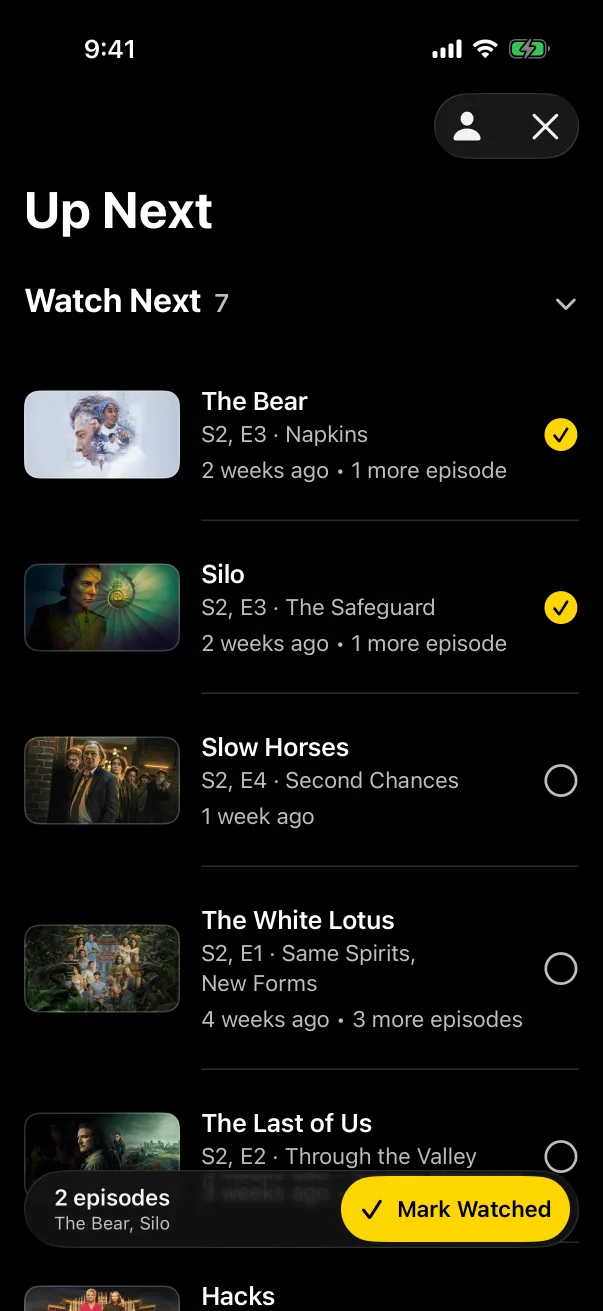
While you're selecting:
- The checkmark button becomes × (Cancel), and a bar takes the tabs' place. With nothing picked it reads Select Episodes, and Mark Watched is dimmed.
- Each aired episode shows an empty circle on its right. Tap anywhere on the row to pick it. The circle fills with a yellow checkmark. Tap the row again to leave it out.
- Rows stay where they are, so your next tap lands on the episode you meant.
- Episodes that haven't aired yet are dimmed, and you can't open or pick them.
- Swipes are off.
- The bar shows how many you've picked, for example 2 episodes, and which shows they're from, such as "The Bear, Silo".
Nothing is marked until you say so. Tap Mark Watched to mark every pick at once. The label on the button fades and a checkmark pops in (with Reduce Motion on, it fades in instead). Select ends, and the bar reads, for example, 3 episodes marked watched with Undo, which marks them unwatched again. Tap × (Cancel) to leave Select without marking anything.
If you leave the app, your picks wait for you in Select. If Shows restarts, unmarked picks are gone. Leaving Up Next, such as following a link to another tab or opening another screen, ends Select without marking anything. Signing out, resetting your account, or switching servers clears picks that haven't been marked. One medal follows for the whole batch; see Medals.
On a wider screen
On iPad, or on iPhone Duo when it's unfolded, Up Next shares the screen with your Library. Up Next is on the left. Library is on the right, with its sections and its Filter shows field. Tap a show on the right to open its page there. Up Next stays where it is, and Back takes you back through Library.
Select works the same way in Up Next. With nothing picked, Library stays on the right, the title reads Select episodes, and Mark Watched waits, dimmed. Your first pick replaces Library with a list of your picks.
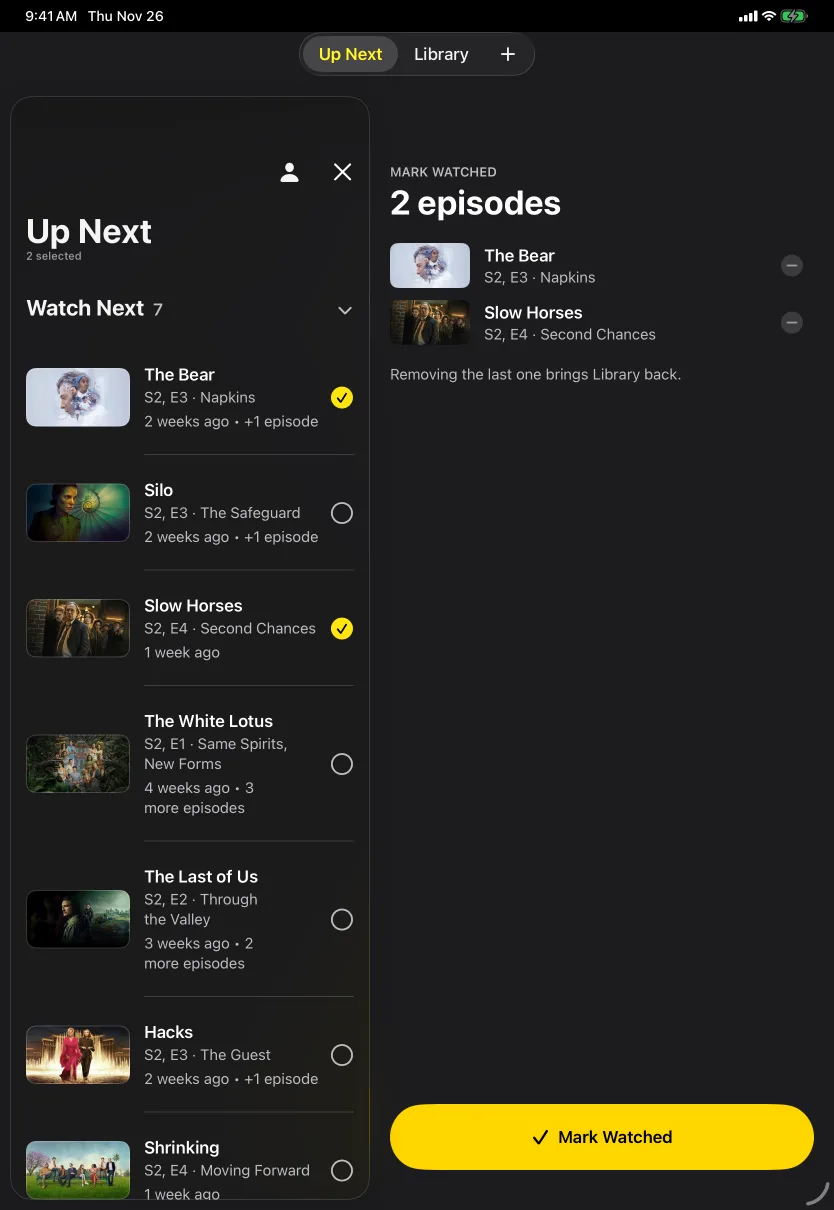
- The count at the top, such as 2 episodes, says how many you've picked.
- Each pick shows its show and episode, such as "S2, E3 · Napkins". Tap the minus button to take one out.
- Mark Watched at the bottom marks every pick at once.
While you have picks, the title reads, for example, 2 selected. Remove the last pick, tap × (Cancel), or mark your picks watched, and Library comes back just as you left it.
When iPhone Duo is folded, or the Shows window on iPad is narrow, Up Next fills the screen and uses the bar described in Select several episodes. Your picks stay when you fold or unfold. Changing how you hold the device never marks or clears anything.
The Library tab still opens Library full screen, at the same show, section, filter, and scroll position as the pane.
Swipe right
In Up Next, swipe an episode to the right.
- A short swipe reveals the yellow Watched button. Tap it to confirm.
- A full swipe across the row marks it watched in one motion.
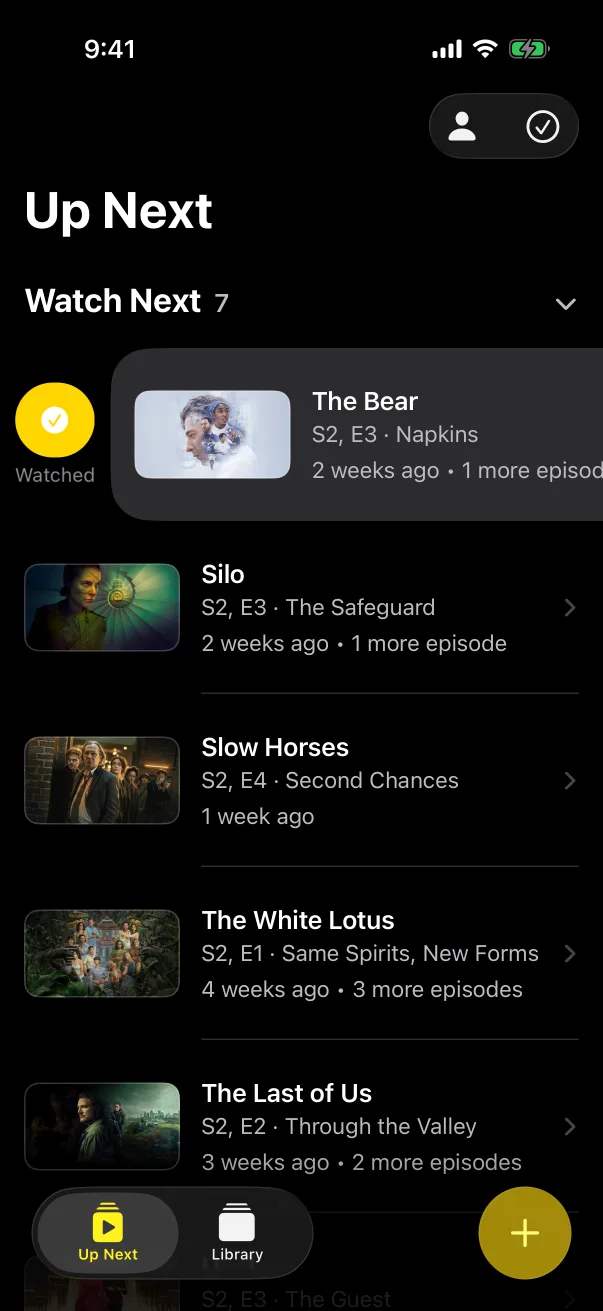
The row then moves on to the show's next episode. If it's the last aired episode, the show moves to the section for its next air date.
Touch and hold
Touch and hold any row in Up Next to see a preview and a menu.
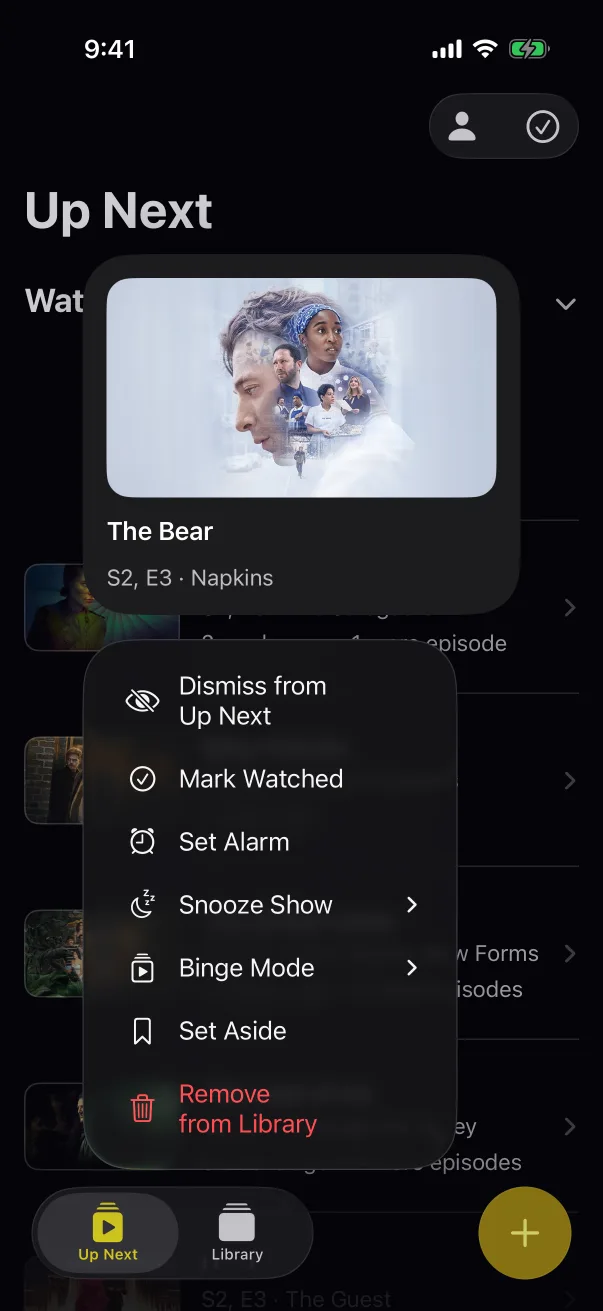
| Menu item | What it does |
|---|---|
| Dismiss from Up Next | Hides this episode without marking it watched. See Dismiss and snooze. |
| Mark Watched | Marks the episode watched. Only shown for episodes that have aired. |
| Set Alarm | Schedules an alert for an upcoming episode. See Alarms. |
| Disable Alarm | Removes an alarm you set earlier. |
| Snooze Show | Hides the whole show for a while. |
| Remove from Library | Stops following the show. |
Everywhere else
You can also mark episodes watched from:
- An episode page: tap Mark Watched at the bottom of the page.
- A show page: tap the circle next to any episode, or mark a whole season or show at once. See Episodes and seasons.
- The Library: touch and hold a poster and choose Mark Watched.
- A reminder notification: touch and hold it and choose Mark Watched.
- The Up Next widget: tap the ✓ beside an episode airing today. See Widget.
- Siri: say "Mark episode watched in Shows." See Siri and Shortcuts.
Episodes have to air first
You can't mark an episode watched before its air date. Shows says Can't Mark as Watched if you try. Shows considers an episode aired from the start of its air date in your time zone.
Marking an episode watched in a show you follow also earns you an episode medal.
Change what swipes do
You choose what each swipe direction does.
Tap your account button in the top-right corner to open Settings.
Under Up Next Swipes, set Swipe Left and Swipe Right to Dismiss or Watched.
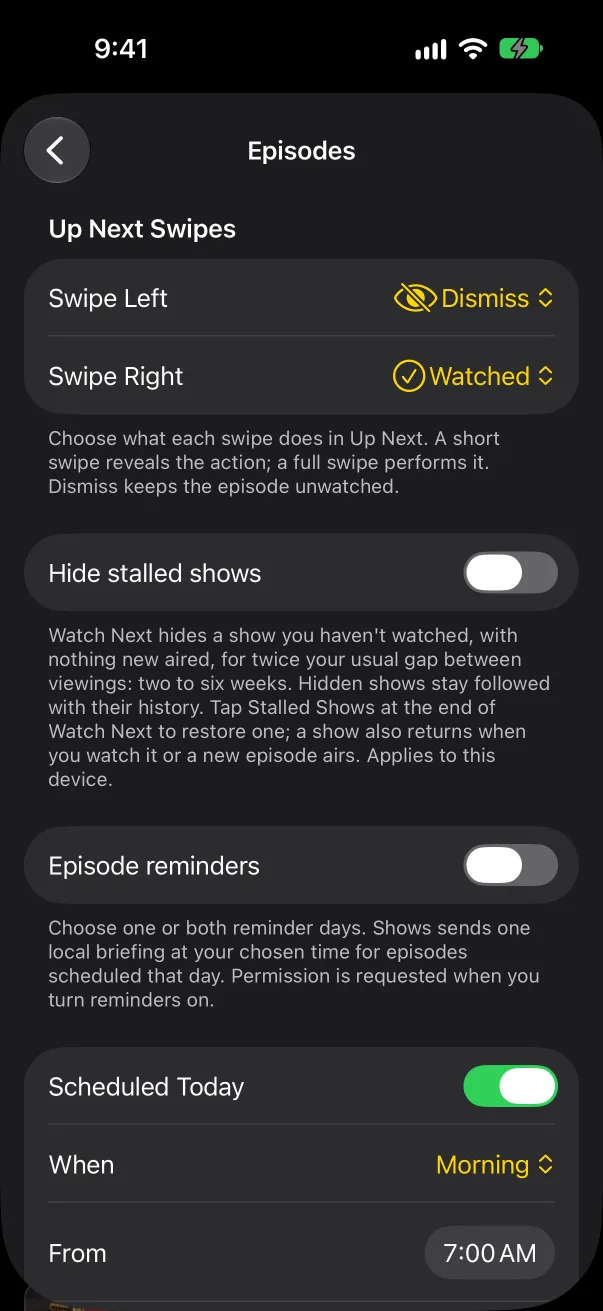
By default, swiping right marks watched and swiping left dismisses. Both directions can do the same thing if you prefer. In right-to-left languages the directions are mirrored.
Undoing a mark
Marked something by mistake? Open the show or episode and tap the yellow checkmark again to mark it unwatched. On a show page you can also mark a whole season unwatched from its season button.