
Tips and the guided tour
How Shows teaches its features with small tips and an optional tour.
Shows introduces its features gradually, next to the real controls, rather than with a long walkthrough when you first open it.
Contextual tips
When you reach a control for the first time, such as an episode row in Up Next or the Follow button on a show, a light bubble may appear beside it with a short explanation. These tips use the same bubble style as the guided tour, including when the app is in dark mode.
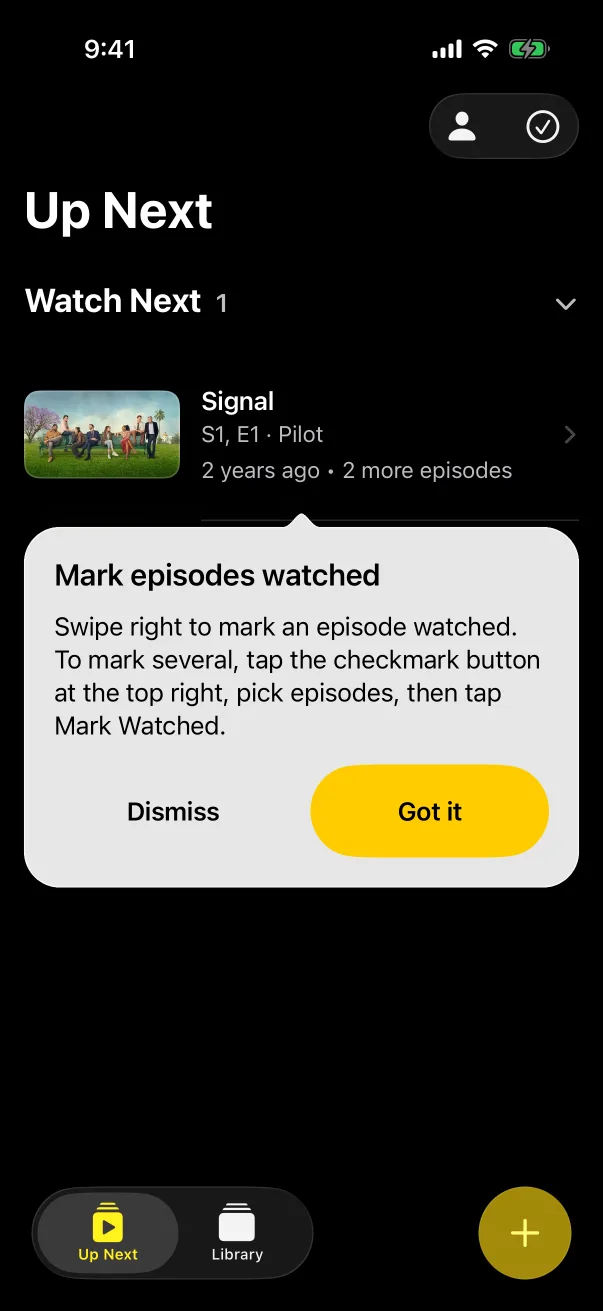
- Tap Got it or Dismiss and that tip won't come back. You stay on the same screen; dismissing a tip doesn't start the guided tour.
- If you just carry on (tap the control, scroll, or switch screens), the tip disappears and may return another time.
- Shows shows at most one tip at a time and no more than three per session, so tips never pile up.
- Tips never do anything for you. They only describe what a control does.
Tips are remembered on this device only. A new iPhone or iPad starts fresh. Dismissed and finished tips stay hidden even when their wording changes. To see them again, open Settings, tap Reset Tips, and confirm. Tips return as you reach their controls. Cancel keeps your existing choices.
The guided tour
For a complete walkthrough, open Settings and tap Take a Tour. Settings closes and Shows walks you through the real screens, highlighting each control in turn: adding a show, marking episodes watched, dismissing one, following a show, marking seasons and whole shows watched, switching episode views, setting an alarm, and, if you follow someone, following people and their guest appearances.
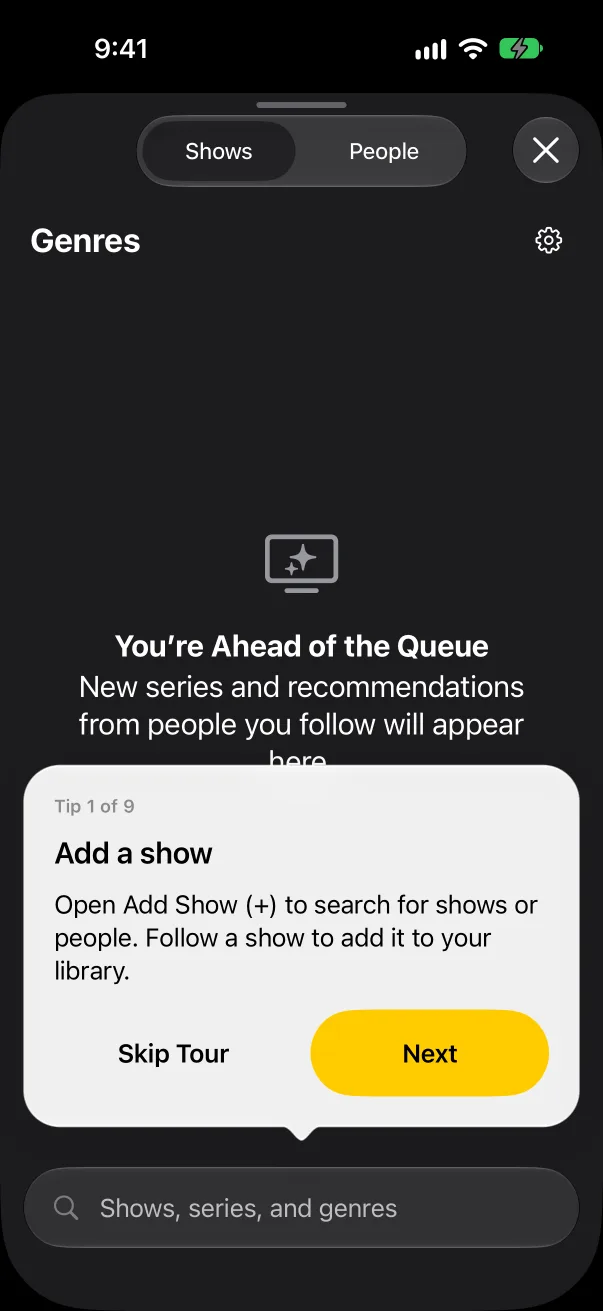
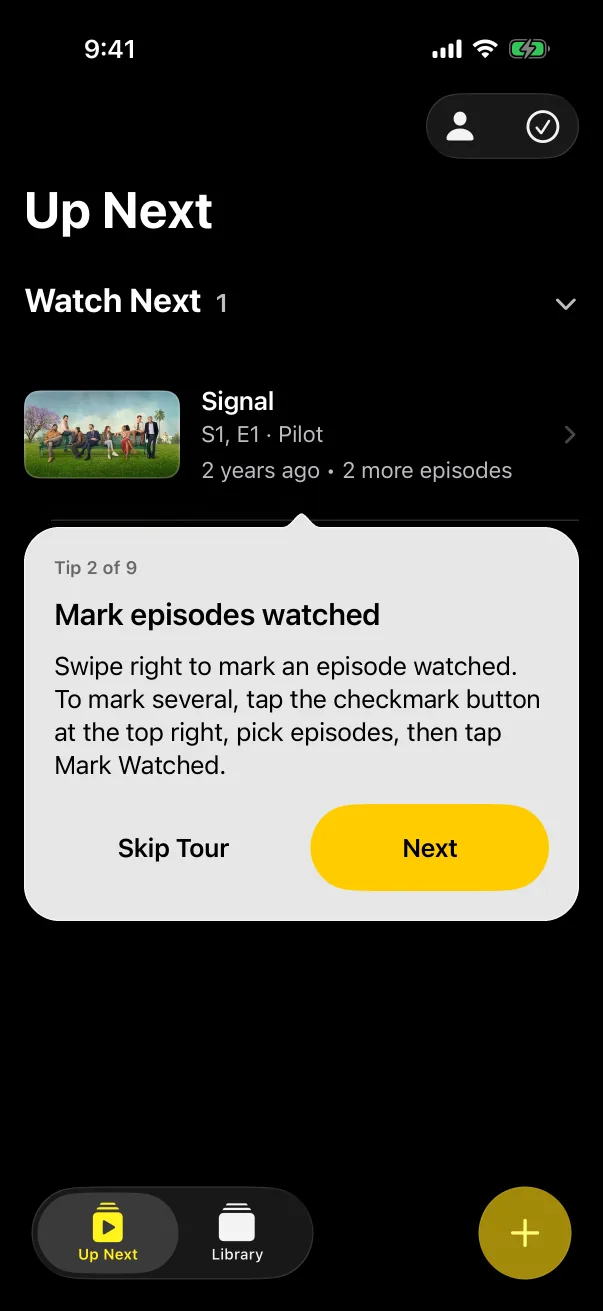
- Next moves to the following step; the last step says Done.
- Skip Tour ends the tour immediately.
- When the tour ends, you're returned to where you started.
Steps only appear when the matching content exists. For example, the person steps need someone you follow. If a control is still loading, the bubble says so and you can move on.
The tour follows your settings
The watched and dismissal steps follow your swipe settings. If neither swipe does the job, they explain the touch-and-hold menu instead. The watched step also mentions the checkmark button (Select).