
Episodes and seasons
Browse seasons, switch between list and card views, and mark episodes, seasons, or a whole show watched.
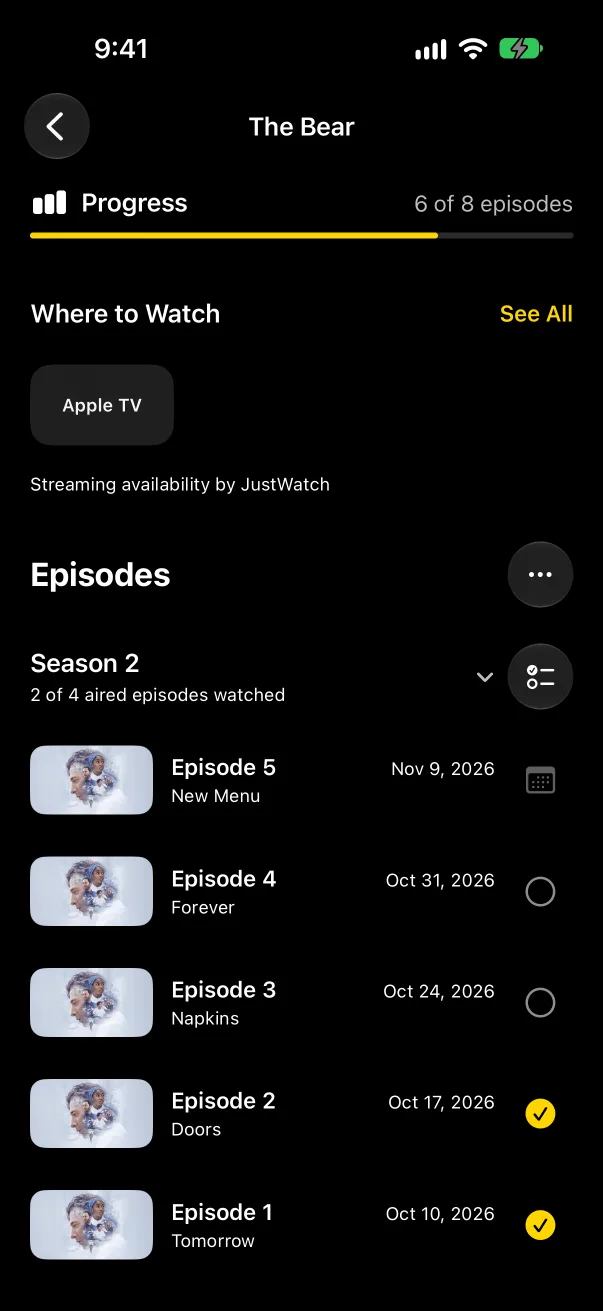
The Episodes section of a show page lists every season. The newest season comes first and starts expanded; Specials are always last.
Seasons
Tap a season's name to expand or collapse it. The header shows, for example, "6 of 10 aired episodes watched".
A season that's been announced but has no episodes yet says Season 5 Announced and "The show is returning. Episode details are coming soon."
Mark an episode watched
Tap the circle beside an episode. It fills with a yellow checkmark. Tap it again to mark the episode unwatched.
Upcoming episodes show a calendar instead of a circle: you can't mark them watched until they air.
Mark a season watched
Tap the circle button on a season's header.
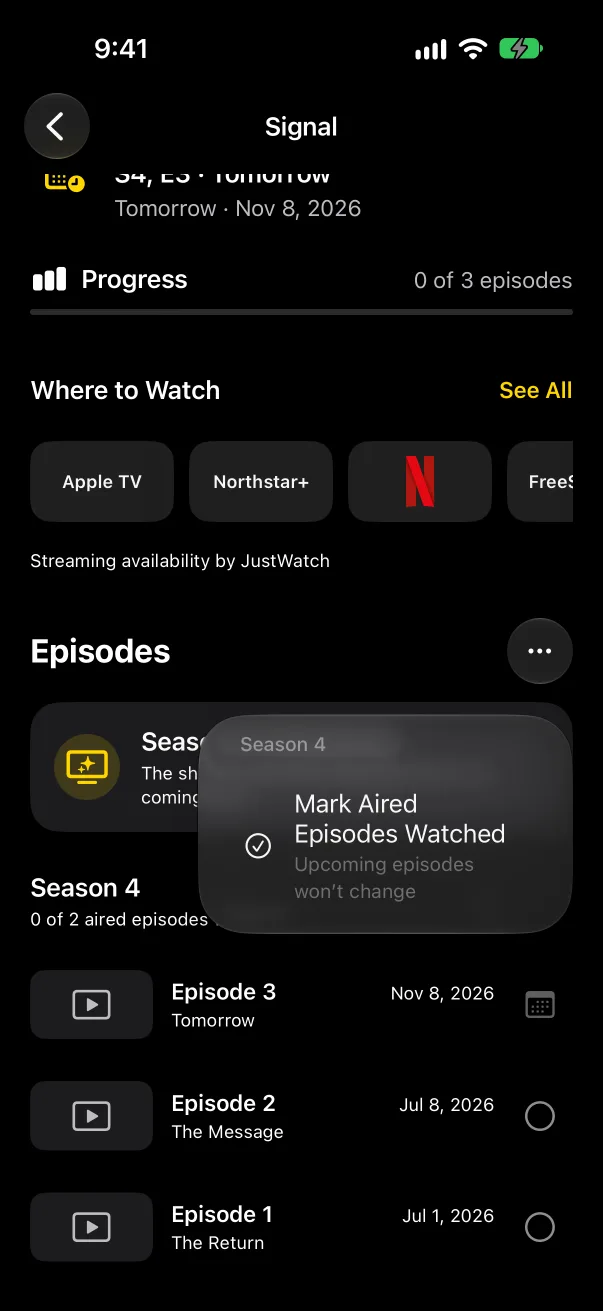
- Mark Aired Episodes Watched marks every episode of that season that has aired. Episodes that haven't aired stay unwatched.
- When the season is complete, the option becomes Mark Season Unwatched. Shows asks you to confirm before clearing a season.
This is the quickest way to catch up on a show you've been watching elsewhere.
Mark the whole show watched
Tap Episode Options (the ⋮ button beside the Episodes heading), then Mark All Watched. Shows confirms first, and marks every aired episode in every regular season. Specials aren't included.
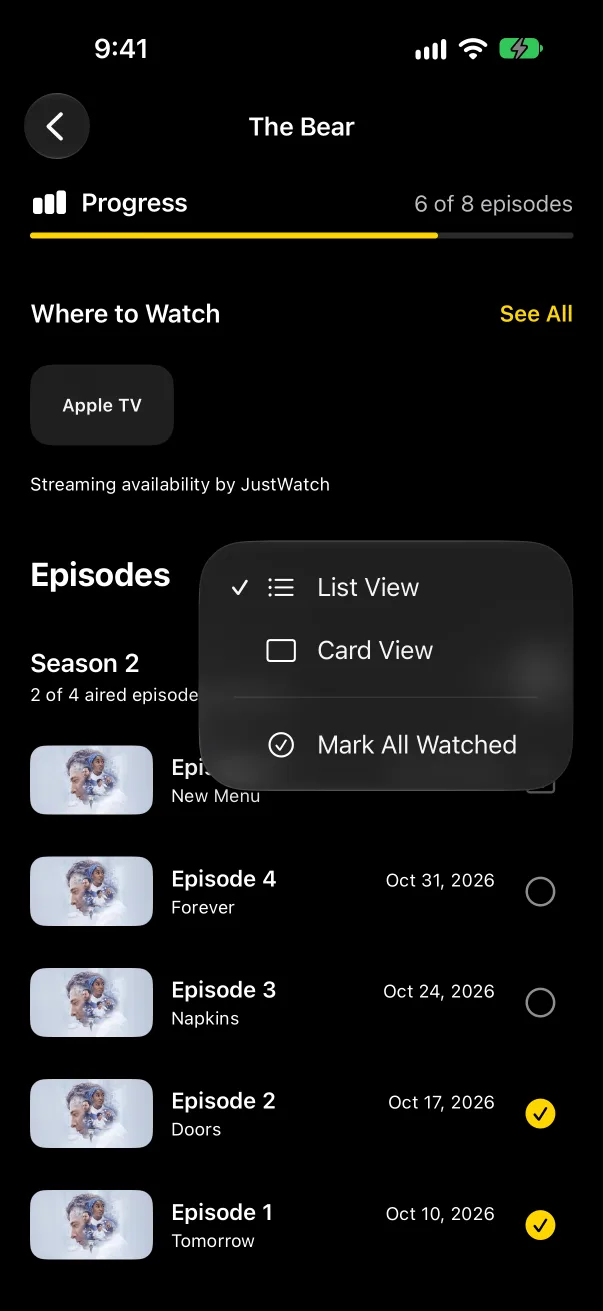
When you've watched everything, the option becomes Mark All Unwatched.
List view and card view
Episode Options also switches how episodes are shown:
- List View (the default): compact rows with a thumbnail, number, air date, and title.
- Card View: a swipeable carousel of large cards with each episode's description and a full-width watch button. It opens on your next unwatched episode and moves along as you watch.
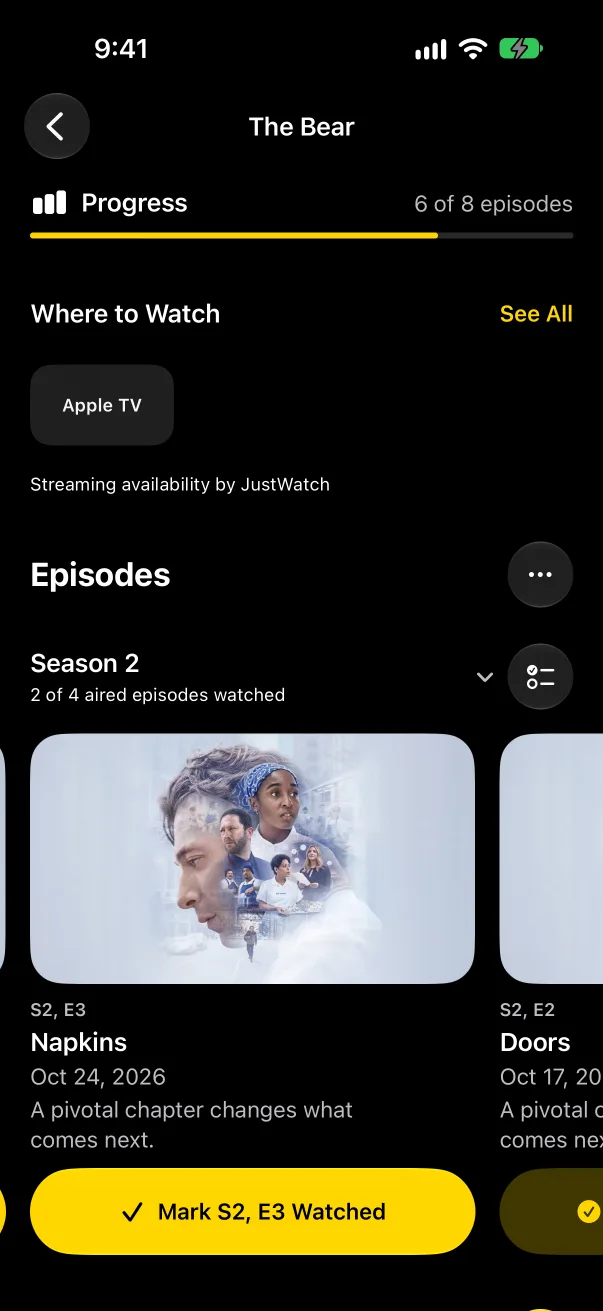
Your choice is remembered for every show on this device.
Episode pages
Tap an episode to open its page.
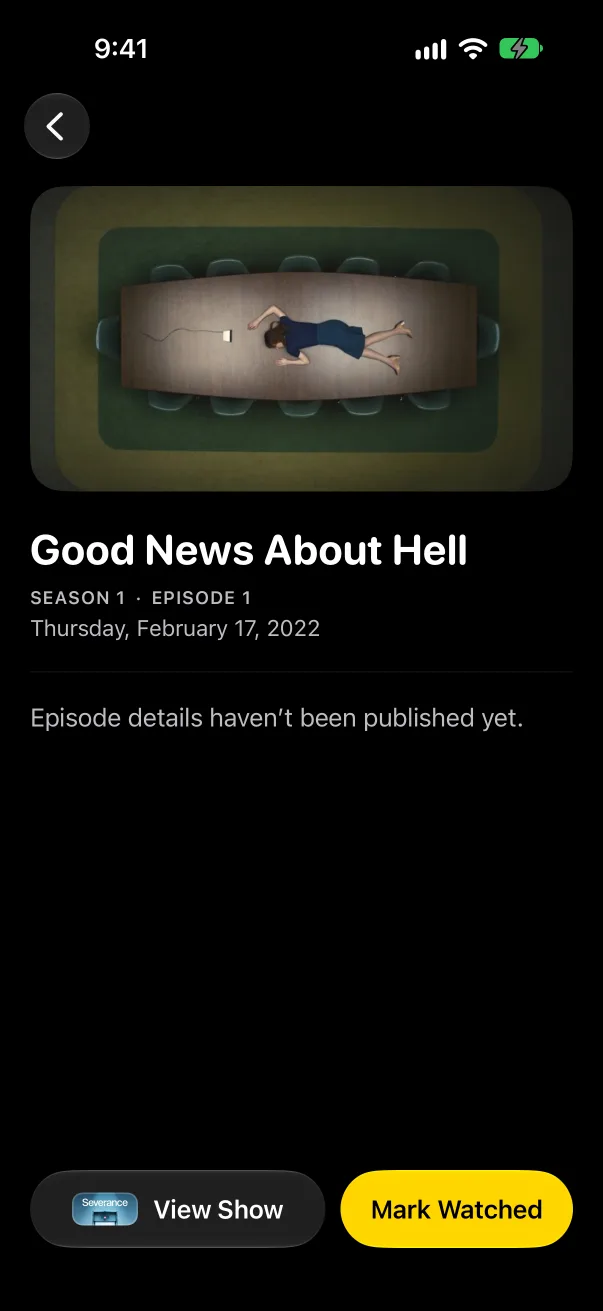
An episode page shows:
- the episode still and its name;
- the season and episode number, runtime, and air date;
- the description;
- People you follow in this episode, if any of them appear in it;
- Where to Watch, the services that carry the show. See Where to watch.
Two buttons float at the bottom of the page while you scroll:
- View Show, with the top of the show's poster, opens the show page.
- Mark Watched, in yellow, marks the episode watched once it has aired. The button then reads Watched with a filled checkmark; tap it again to undo.
Episodes that haven't aired show Scheduled for and the date. Watched episodes in your Library offer View Episode Badge, just above these buttons, to see the medal you earned.
Open in Apple TV
If you turn on Settings → Episodes → Apple TV links, episode pages for shows available on Apple TV show an Open in tv button that searches for the show in the Apple TV app.