
The show page
Everything on a show's page, and how to follow a show the way you want.
Every show has a page with its artwork, details, your progress, all of its episodes, where to stream it, and its cast and crew. Open it by tapping a show anywhere in Shows.
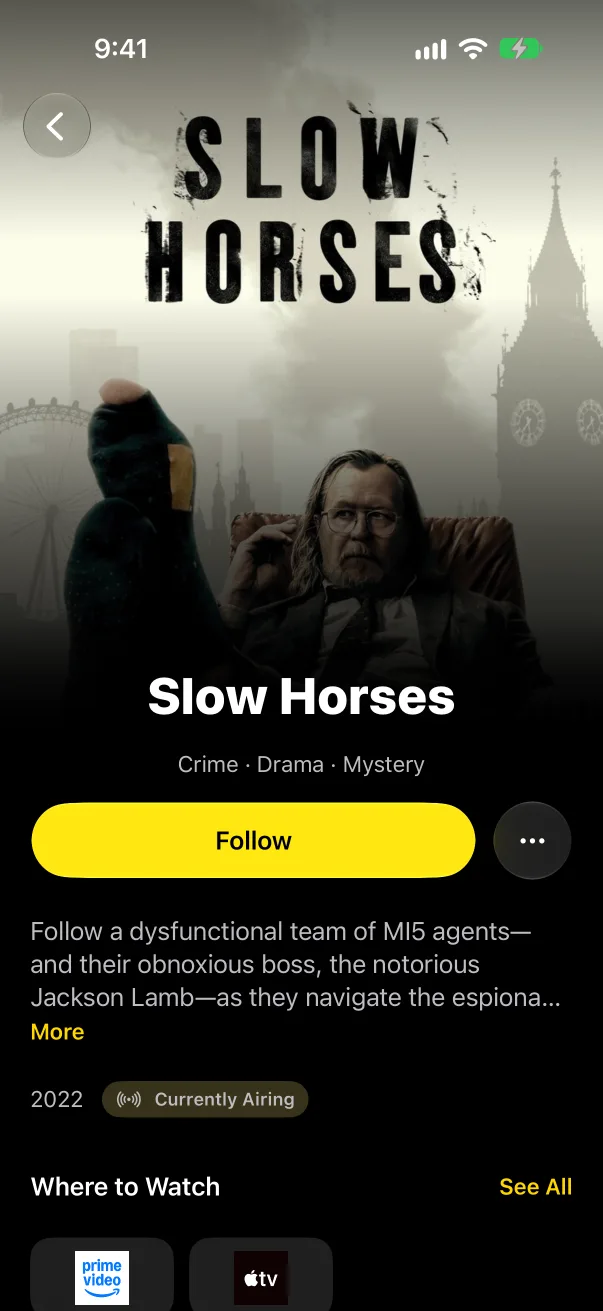
What's on the page
From top to bottom:
- Artwork and title. On iPhone you see the poster; on wider screens, the backdrop.
- Genres, such as "Drama · Crime".
- Follow and … buttons. See below.
- Description. A long one ends with More. Tap it to read the whole thing.
- Year and status, for example "2022 · Currently Airing".
- NEXT EPISODE: the next episode you'll be able to watch and when it airs.
- SNOOZED IN UP NEXT, if you snoozed the show, with a Wake button.
- Progress: how many aired episodes you've watched, for example "12 of 20 episodes". Specials don't count.
- Where to Watch. See Where to watch.
- Episodes, grouped by season. See Episodes and seasons.
- Cast & Crew. See Cast and crew.
The status uses the same labels as the Library: Currently Airing, In Production, Upcoming, Pilot, Completed, or Canceled.
Following a show
The yellow Follow button adds the show to your Library and Up Next. Tap it to choose how. Add to Library comes first, with the other ways to follow below it:
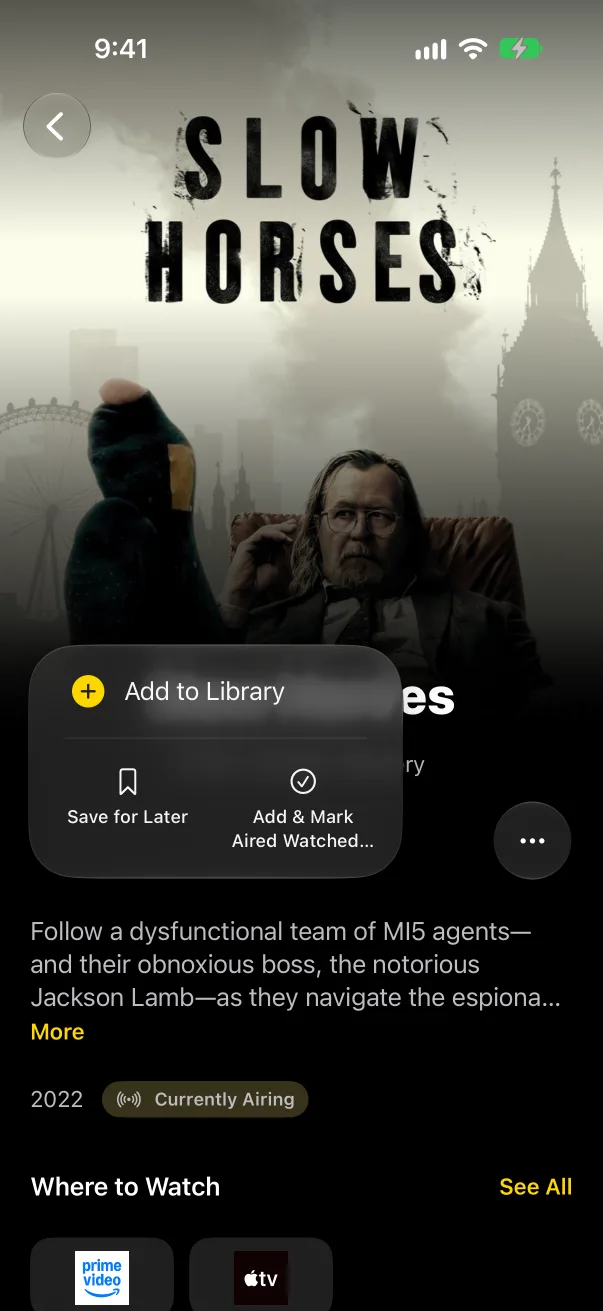
- Add to Library: follow from the beginning. Use this for a show you're starting.
- Save for Later: follow the show but keep it out of Up Next until you're ready. See On Deck.
- Add & Mark Aired Watched…: follow and mark everything that has aired as watched. Use this for a show you're caught up on. You'll confirm right in the menu before anything changes.
- Matching Episodes Only: follow just the episodes featuring people you follow, like a talk show's guest spots. This appears when you track guest appearances or episode work.
Once you follow a show, the button reads Following (or Matching Episodes Only) and turns translucent. Tap it to:
- switch between Follow Entire Show and Matching Episodes Only,
- choose Set Aside (or Save for Later, if you haven't started it) to move the show On Deck, or Add to Up Next to bring it back. While it's On Deck, the button reads On Deck and the page shows an On Deck card with Add to Up Next, or
- choose Remove from Library…, which removes the show and your watch progress for it. You'll confirm in the menu.
Following works offline. If a follow can't be saved to your account, a banner at the top says Couldn't follow and the show's name (or Couldn't remove when unfollowing fails); tap it to open the show and try again.
Marking an episode adds the show
If you mark an episode watched on a show you don't follow, Shows adds the show to your Library for you. Guest-appearance episodes are the exception: watching one doesn't follow the whole show.
Share, alarms, and Binge Mode
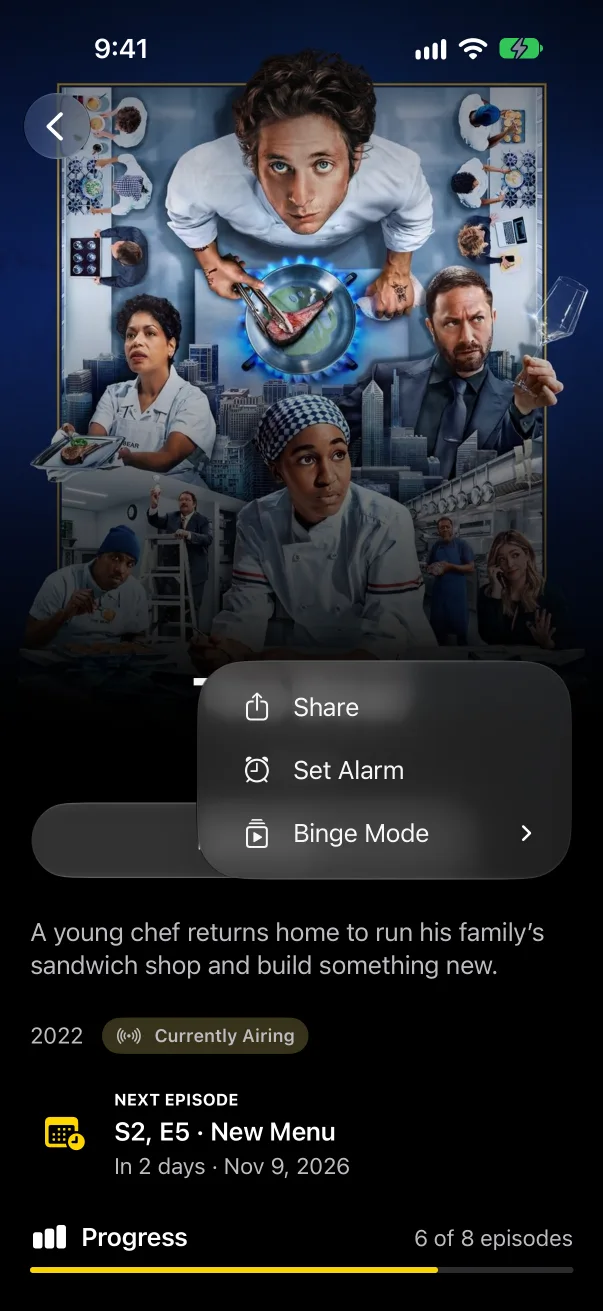
The round … button next to Follow holds:
- Share, which shares a link to the show's page on shows.gg.
- Set Alarm or Change Alarm, for shows in your Library, to get an alert for the next upcoming episode. See Episode alarms.
- Binge Mode, for shows you follow for every episode, to wait until a season or the whole series is out, then watch it in order. See Binge Mode.
Spotlight and Handoff
Shows in your Library appear when you search with Spotlight, and the show you're looking at is offered to your other devices through Handoff. Opening either one opens Shows.