
Binge Mode
Wait until a season or a whole series is out, then watch it in order without it crowding Up Next.
Binge Mode is for a season you'd rather watch all at once, such as a new season that hasn't premiered or one that's airing weekly. Shows keeps the show out of Up Next while you wait. Once every episode is out, the first one you haven't watched appears in Watch Next, and Shows can send you a notification.
Turn on Binge Mode
Under Binge Once It's All Out, choose a season, such as Season 4, or Entire Series.
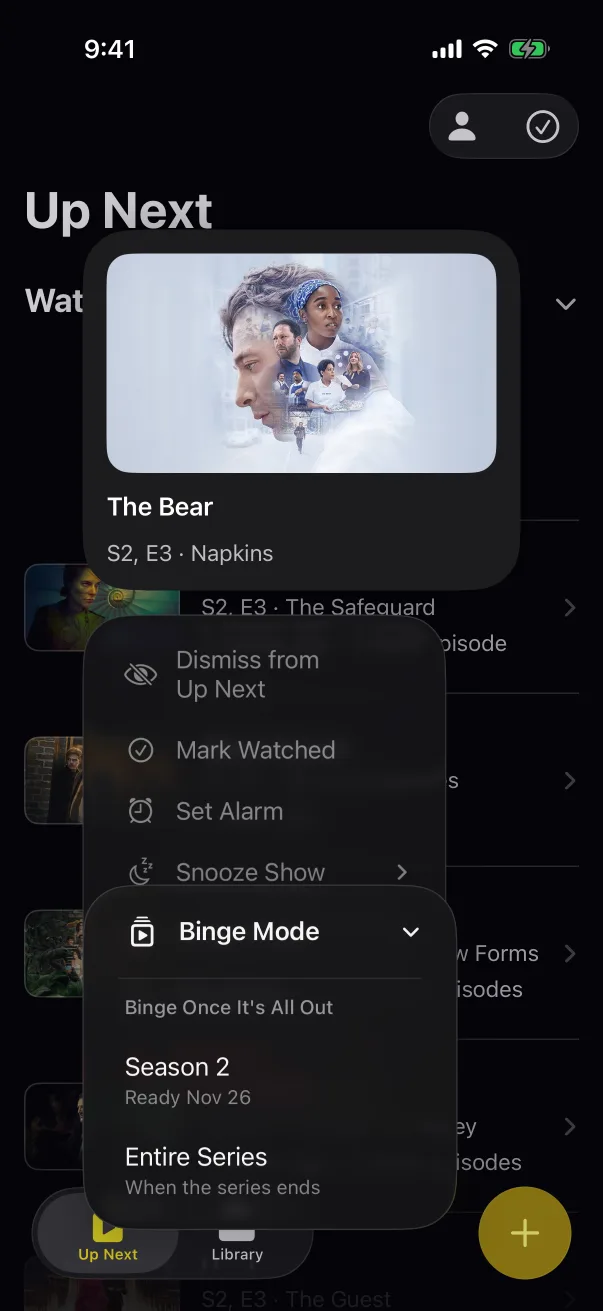
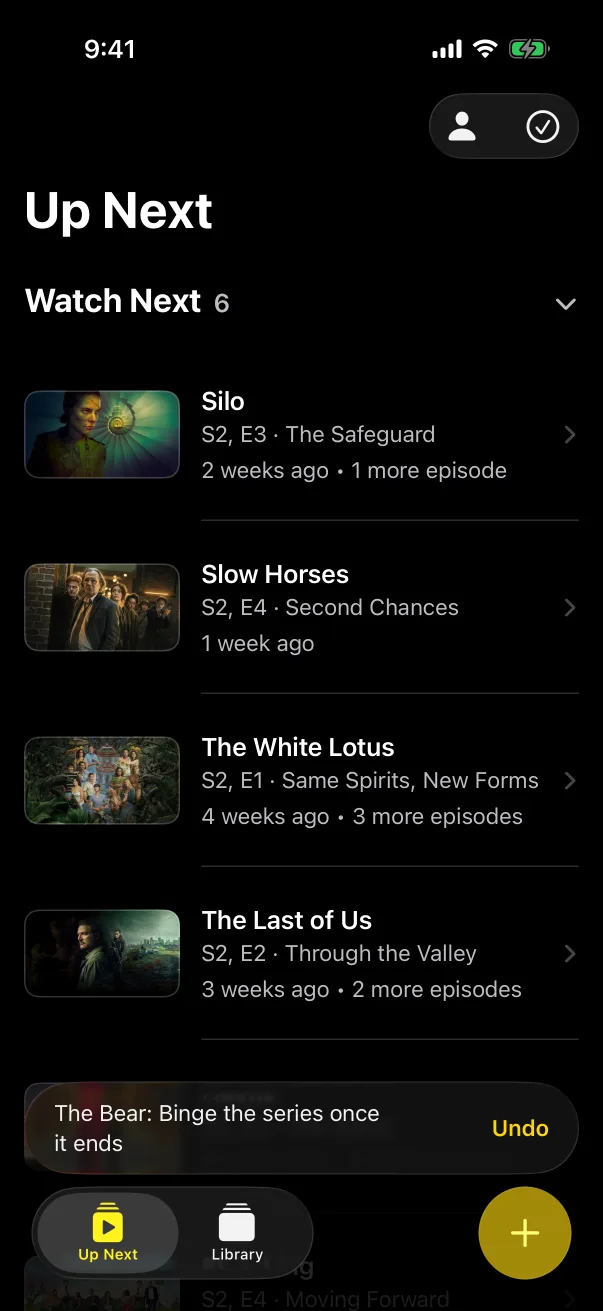
You can also open the show's page, tap the round … button, and choose Binge Mode there. Use the show's page for a show that isn't in Up Next, such as one with only an announced season.
The menu lists:
- Each season that isn't fully out yet, including an announced season with no episodes or dates. A season whose episodes have all been released isn't listed, because there's nothing to wait for.
- Entire Series, until a show that has ended has released every episode.
- The binge in effect, with a checkmark, so you can see it and turn it off.
Under each choice, a subtitle says when it will be ready, such as Ready Nov 8, or When every episode is out and When the series ends when Shows can't tell yet.
A bar confirms the change, for example The Bear: Binge Season 4 once it's all out, with an Undo button. Binge Mode works offline and syncs to your other devices.
Binge Mode is available for shows you follow for every episode. It isn't offered for shows you follow only for guest appearances.
While you wait
The show leaves Up Next completely, including episodes you haven't watched from earlier seasons. It isn't in Watch Next, Airing Today, Next Week, Next Month, or Later, and its episodes aren't in your day-of or day-before reminders, Scheduled Today, or the Up Next widget. Episode alarms you set still go off.
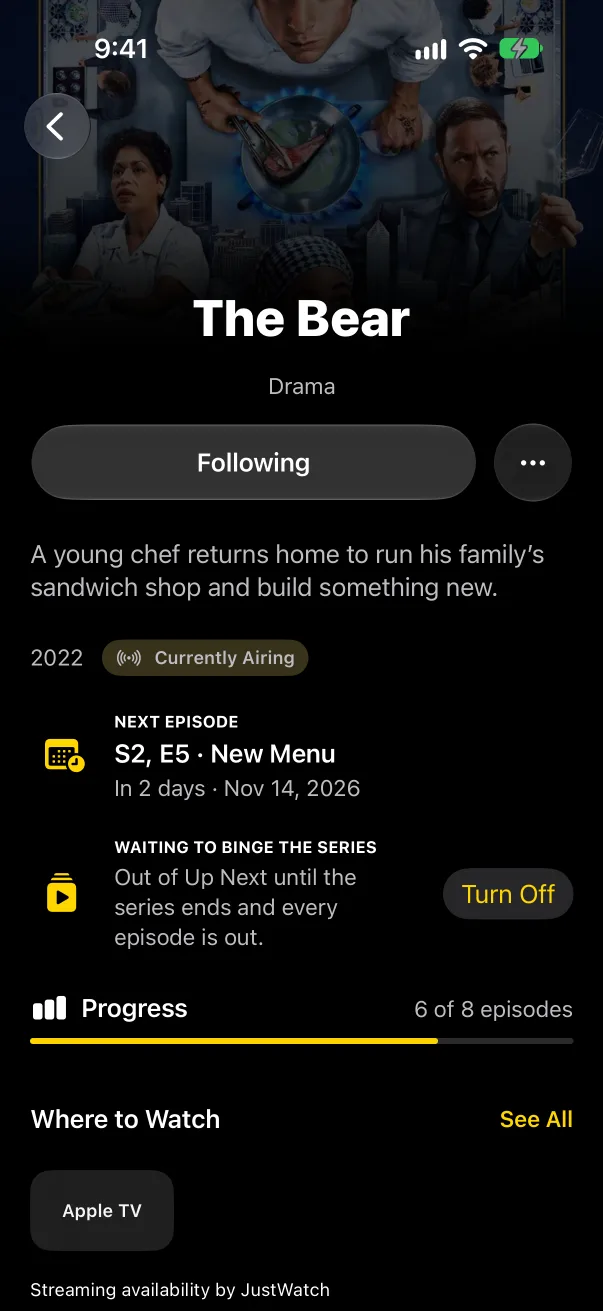
The show's page explains the wait, such as WAITING TO BINGE SEASON 4, even before the season has any dates. When Shows knows the day the season will be complete, the box says so.
When it's ready
A season is ready on its last release day, once its full episode list is loaded and every episode has a date and has aired. Shows uses the catalog's listed episode count to check that none are missing. If the schedule changes, the wait follows the updated dates.
Entire Series is ready only after the show has ended and every episode has aired. If the show has Include Specials turned on, its specials must also be fully released. A show that's still returning keeps waiting.
A season with any episode still undated, or that Shows hasn't finished loading, keeps waiting.
On the ready day, the first episode you haven't watched appears in Watch Next with a Binge tag and no episode count. Episodes you've watched or dismissed are skipped. The binge stays out of Airing Today.
Watch in order, and Binge Mode ends on its own after the last episode in its scope. The show then goes back to normal tracking, starting from its earliest unwatched episode. Binge Mode doesn't start waiting for the next season; choose it again when you want to.
A snoozed or hidden show stays out of Up Next until you wake or show it, Binge Mode or not.
Ready notification
If episode reminders are on, Shows notifies you at your reminder time on the ready day, for example Every episode of Season 4 is out. It's ready to binge in Watch Next. Tap it to open the show.
Shows often learns a binge is ready only after the fact, for example when a series is marked as ended a day or two after its finale. If this device saw the binge waiting, Shows still notifies you once: at your reminder time if that's still ahead today, or right away if it has passed. Opening Shows again or refreshing doesn't repeat it.
The notification isn't sent:
- While the ready day isn't known yet, such as for a season with undated episodes or a series that hasn't ended.
- For readiness learned late on a device that never saw the binge waiting, such as a new install or a device that wasn't opened while you waited. The show still appears in Watch Next.
- While episode reminders or notifications for Shows in iOS Settings are off. If you turn them back on while the binge still has episodes left, a notice that was missed arrives then.
- When the show is hidden or snoozed, or when you've already watched everything it would bring back.
Turn off Binge Mode
Tap Turn Off in the box on the show's page, or choose Binge Mode → Turn Off Binge Mode from the row's menu or the show's … menu. The show returns to normal tracking right away.
A finished binge is remembered
Shows remembers a binge after it ends. If you mark an episode in its scope unwatched, or a new one is added, the binge picks up again, waiting first if more episodes are coming. To forget it, choose Binge Mode → Clear Finished Binge.
Binges from earlier versions
A binge you started in an earlier version of Shows keeps working the way it did: episodes appear in order as they air, without waiting for the rest. It's listed in the menu with As episodes air, in order under it, and you can turn it off there. On a device with an earlier version of Shows, a binge that waits works that way too.
Dismissing a ready notification or changing your reminder time doesn't repeat it for the same ready day. If more episodes are announced with a new ready day, that day can notify again.