
Library
Browse every show and person you follow, see each show's status, and filter quickly.
Your Library holds everything you follow. Open it from the Library tab.
On iPad, or on iPhone Duo when it's unfolded, Library also sits beside Up Next. The pane and the tab keep the same place, so each opens where you left the other; see On a wider screen.
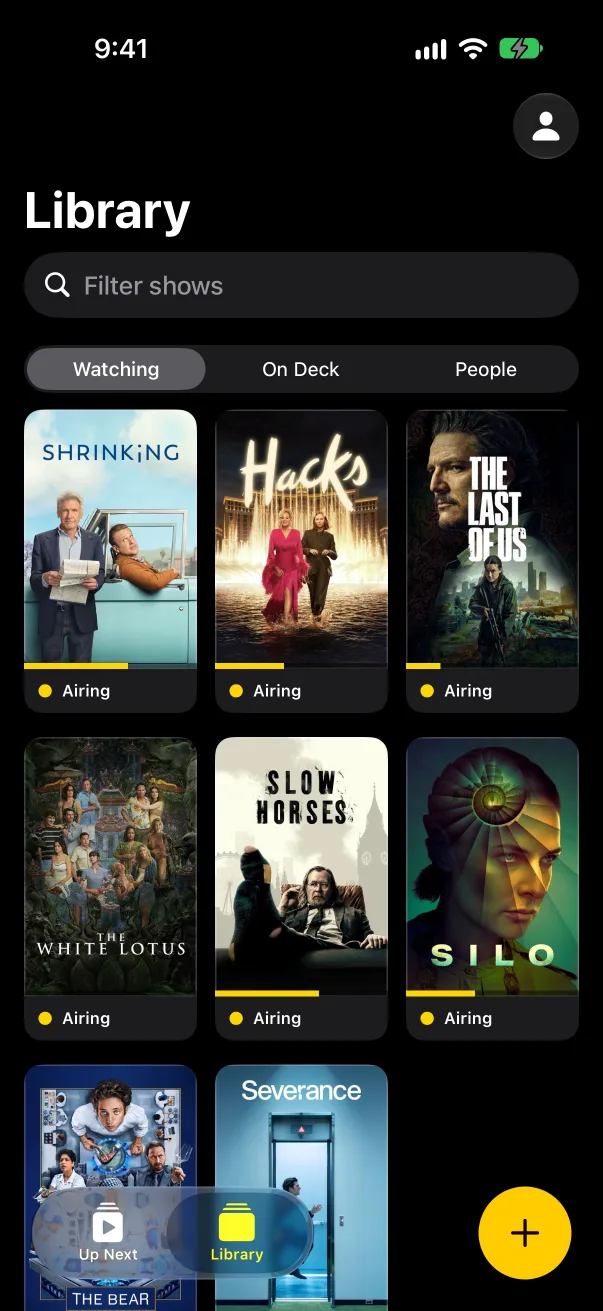
Watching, On Deck, Guests, and People
The control at the top switches what the Library shows:
- Watching: shows you follow for every episode. This is your main list.
- On Deck: shows you've saved for later or set aside. They keep their progress and stay out of Up Next; see On Deck.
- Guests: shows you follow for matching episodes only, such as a talk show you follow just for a favorite actor's appearances. This appears only when Settings → Guest Appearances → Track guest appearances is on; see Follow their work.
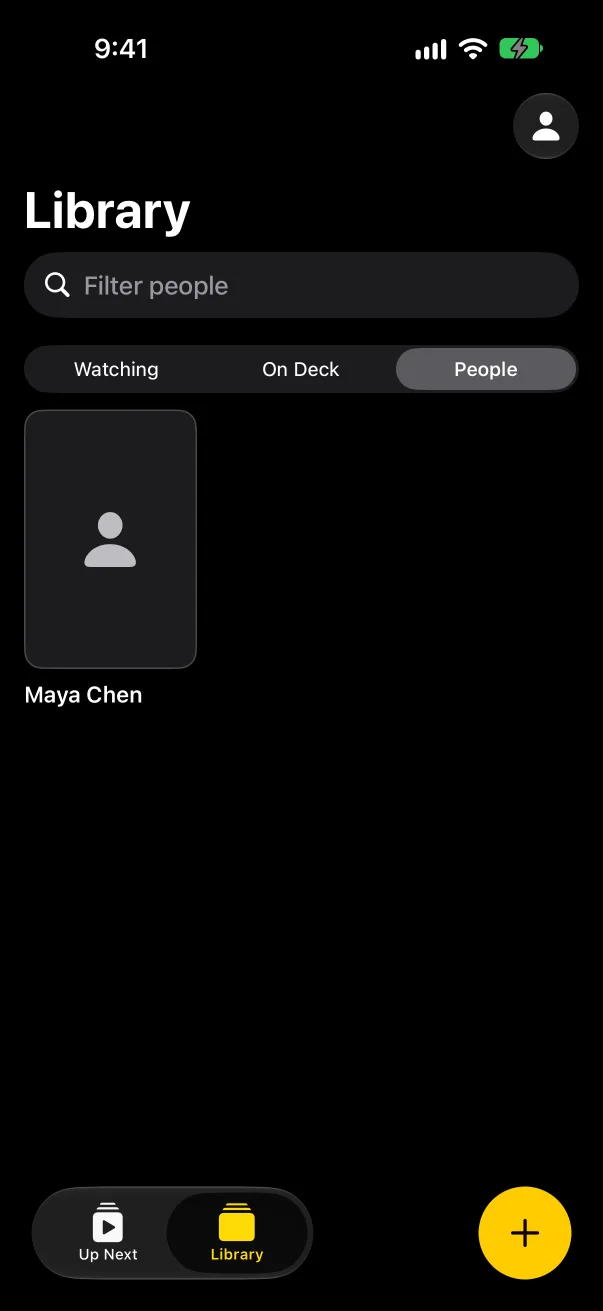
- People: actors and creators you follow.
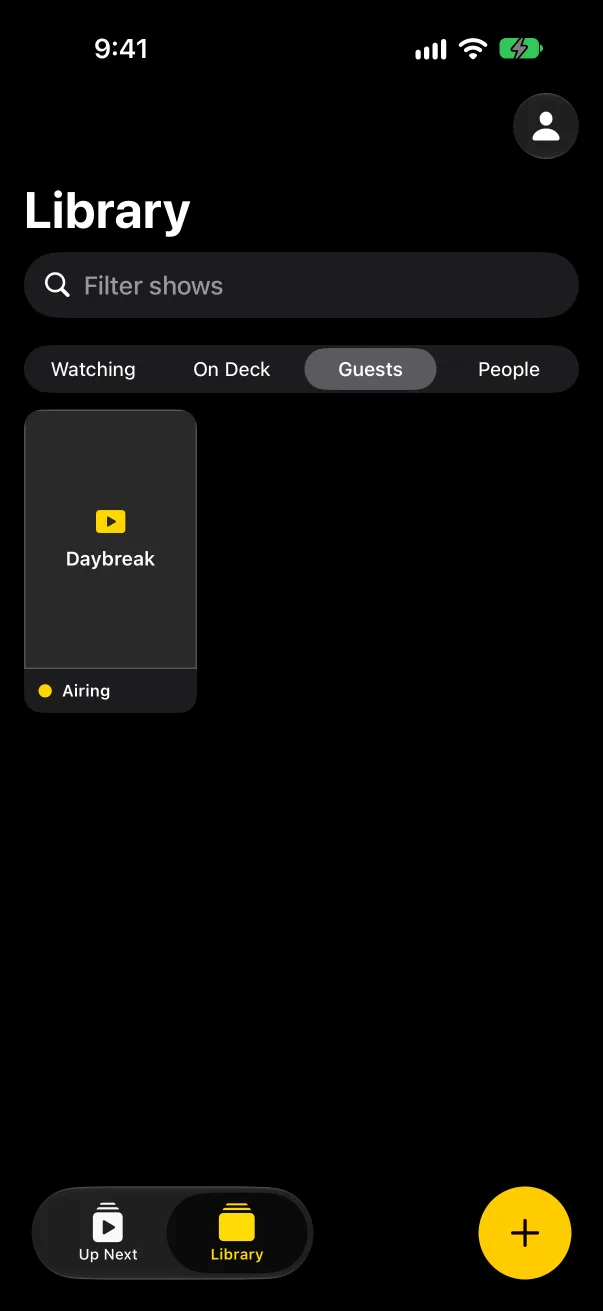
Reading a poster
Each poster has two pieces of information.
The status tag under the poster tells you where the show is in its life. Currently Airing shortens to Airing when the poster is too narrow to fit it.
| Tag | Meaning |
|---|---|
| Currently Airing | The show is running, including between seasons. |
| In Production | A new season is being made. |
| Upcoming | The show is announced but hasn't premiered. |
| Pilot | Only a pilot exists so far. |
| Completed | The show has ended. |
| Canceled | The show was canceled. |
| Unknown | The listing doesn't say. |
The yellow bar along the bottom of the poster shows how far you are through the current season. Posters in Guests don't have one.
Your next episode is in Up Next and on the show page. With VoiceOver, each poster also reads the show's name and your next episode. If a show has no poster artwork, its name appears in place of the art.
Tap a poster to open its show page.
How the Library is ordered
The Library sorts itself so the shows you're most likely to care about come first: shows that are still running, then the most recent episode air date, then the shows you added most recently. There's no manual sort.
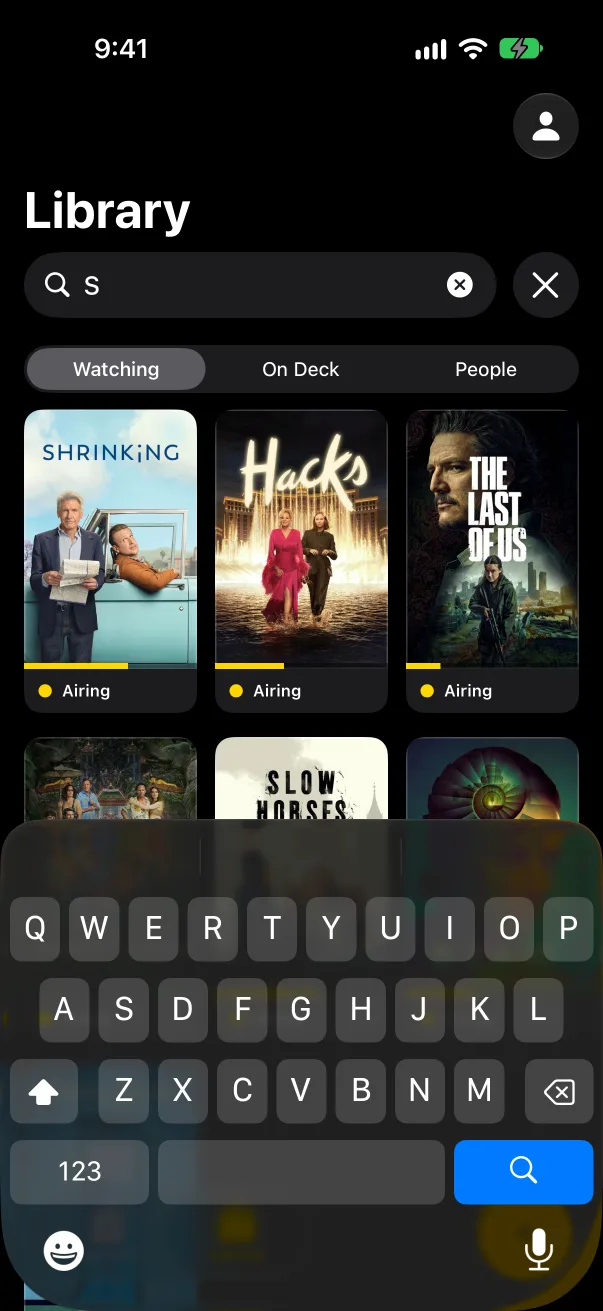
Filter your Library
The Filter shows field sits under the title. Type part of a show's name to narrow the grid. In People, the field is called Filter people and searches names, departments (for example "Directing"), and the shows they're known for.
Quick actions
Touch and hold a poster for quick actions:
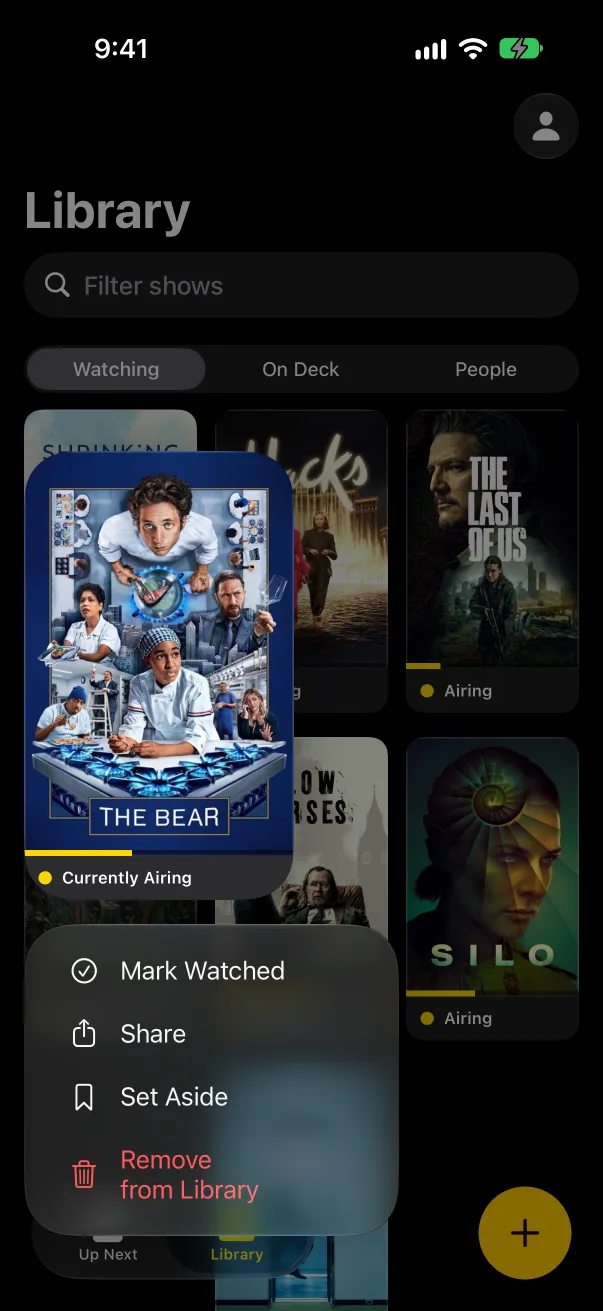
- Mark Watched marks the show's next aired episode watched.
- Share shares a link to the show.
- Set Aside (or Save for Later, if you haven't started it) moves the show On Deck. In On Deck, Add to Up Next moves it back to Watching and Up Next.
- Remove from Library stops following the show. Shows asks you to confirm, because this also removes your watch progress for that show.
In People, touch and hold someone and choose Unfollow. Their recommendations stop appearing in Discover.
Empty Library
If you haven't followed anything yet, the Library says Your library is empty. Tap the yellow + to add a show.
Pull down on the Library to sync with your other devices.