
Signing in
Create your Shows account with Sign in with Apple and bring your library onto a new device.
Shows uses Sign in with Apple for your account. There's no separate password: your Apple ID protects your library and keeps it in sync across your iPhone and iPad.
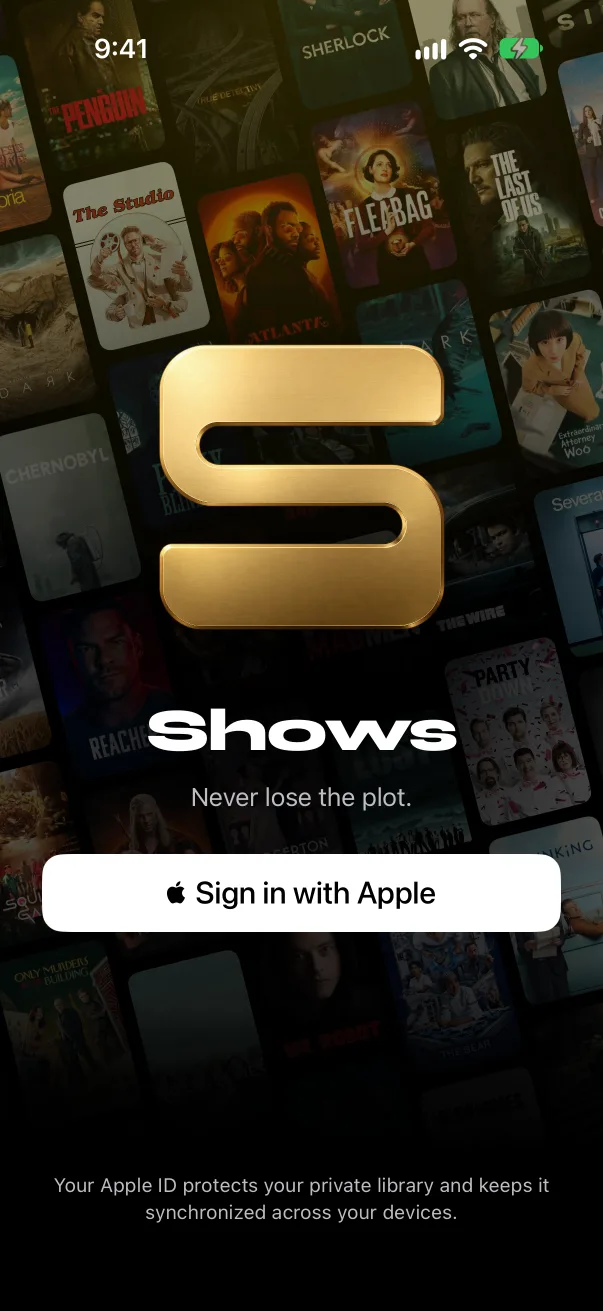
Sign in for the first time
Open Shows. Below the tagline "Never lose the plot." you'll see a Sign in with Apple button. If it says Connecting securely…, wait a moment while Shows reaches its server.
Tap Sign in with Apple and confirm with Face ID, Touch ID, or your passcode. Apple asks whether to share your name and email. Shows saves your name with your account and shows your initials on the account button.
Shows opens on Up Next. If your account is new, it's empty: head to Adding shows to follow your first series.
You need a connection the first time
Signing in requires the internet. If you're offline, the sign-in screen shows Can't Reach Shows with the message "Connect to the internet to sign in for the first time." Tap Try Again once you're connected. After you've signed in, Shows works offline.
Signing in on another device
When you sign in on a second iPhone or iPad with the same Apple ID, Shows downloads your whole account before opening: your library, watch history, and the people you follow.
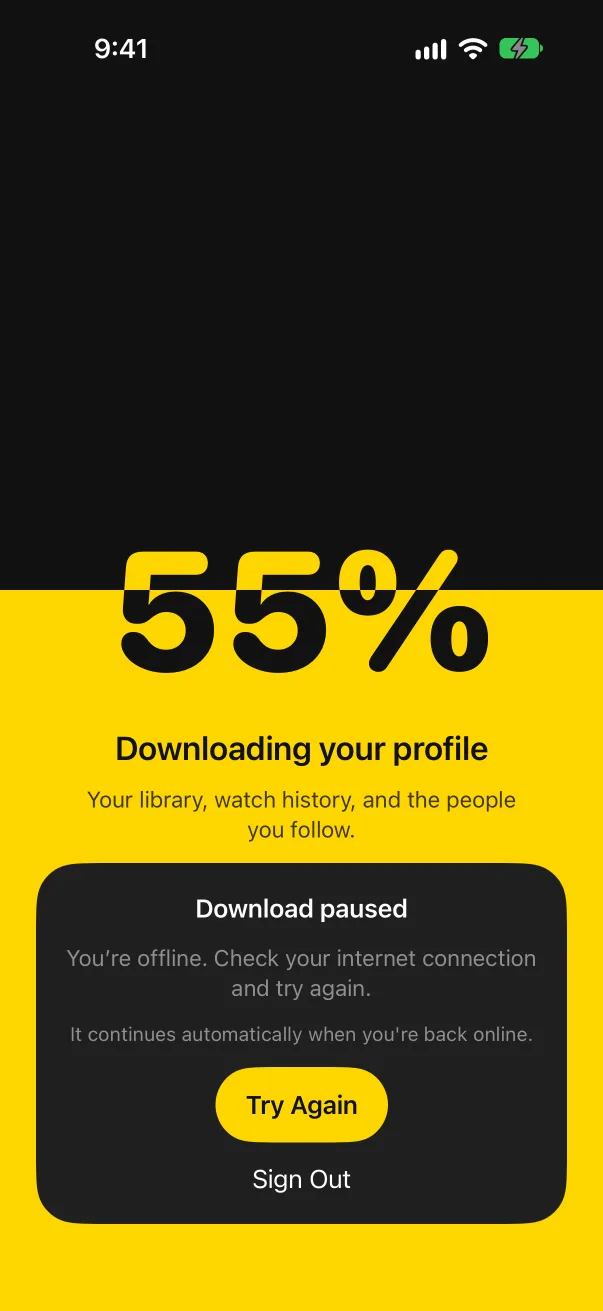
- If you lose your connection, the screen says Download paused. It picks up again automatically when you're back online, or you can tap Try Again.
- If you close Shows partway through, it returns to this screen next time and continues where it left off. Data that already arrived isn't downloaded again.
- When the download is paused, Sign Out cancels it and returns you to the sign-in screen.
An account with nothing in it yet skips this screen and opens straight away.
Choosing where you watch
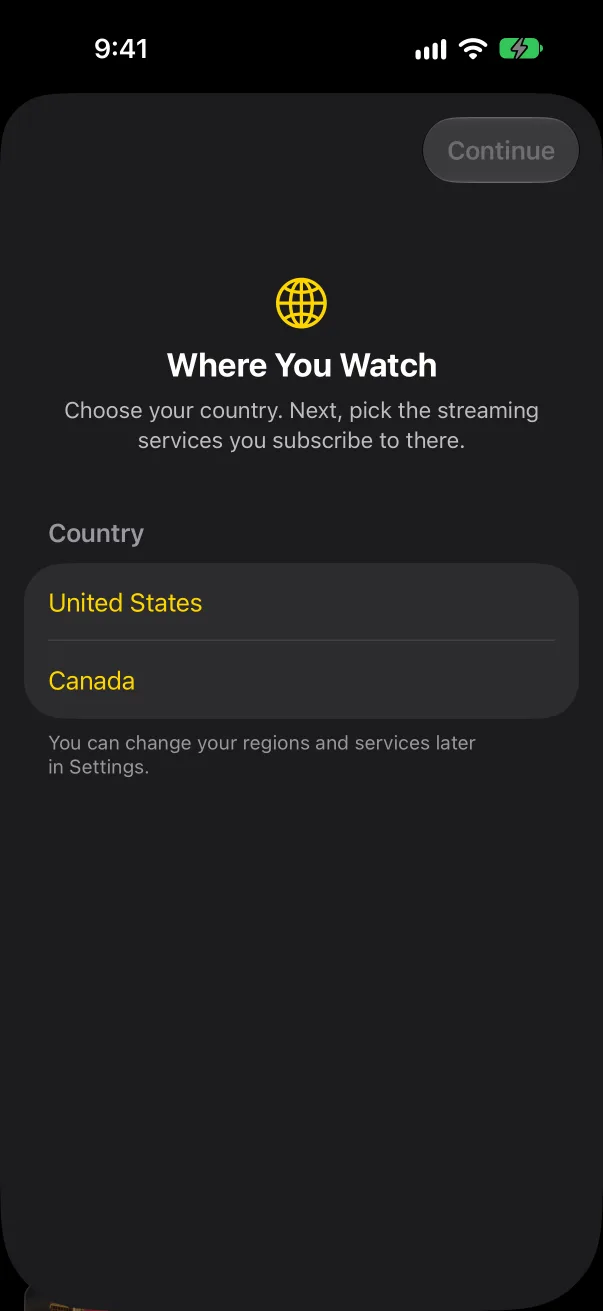
After you sign in, Where You Watch asks you to choose United States or Canada. Tap your country, then Continue to see the streaming services available there.
If you already have several regions or a different country saved on this device, tap Keep current regions to pick services without changing those regions.
The Popular services list starts with eight choices for your country. Use Search all services to find services beyond those popular choices. Plans and channel versions of the same service share one choice; services you select through search remain under Your other services when you clear the search.
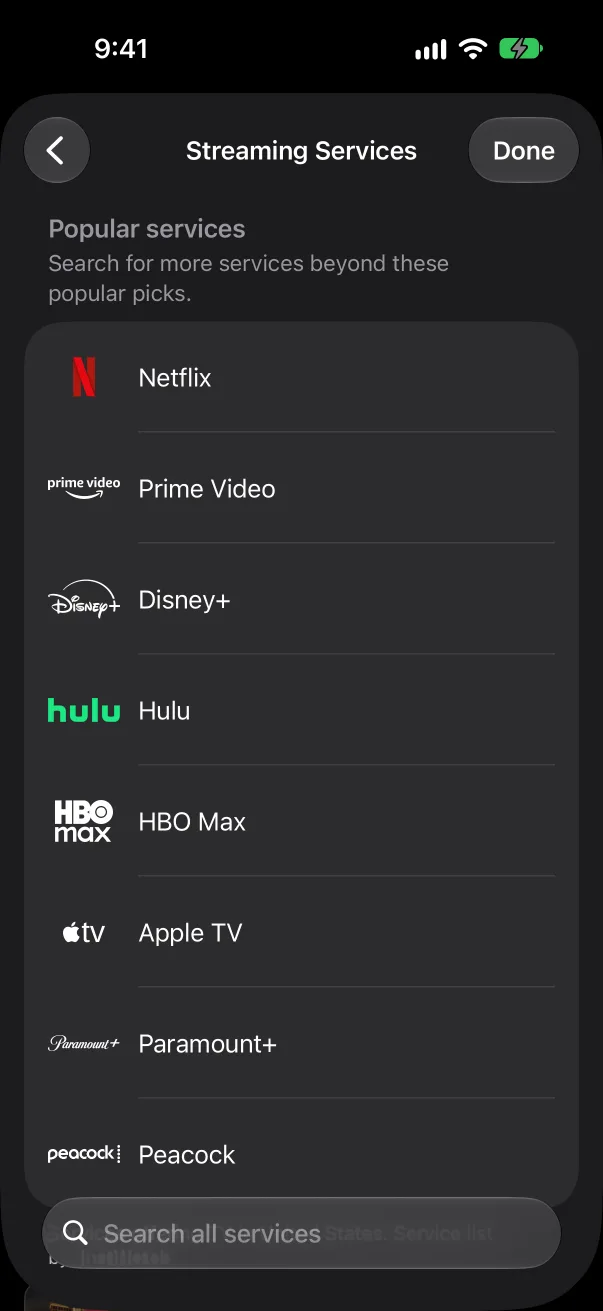
Select the services you subscribe to, then tap Done. You can continue without selecting any services. To choose a different country before finishing, go back. You can change your regions and services later in Settings; see Where to watch.
Turning on episode reminders
Next, the Episode Reminders sheet offers a daily briefing for episodes coming up in your library.
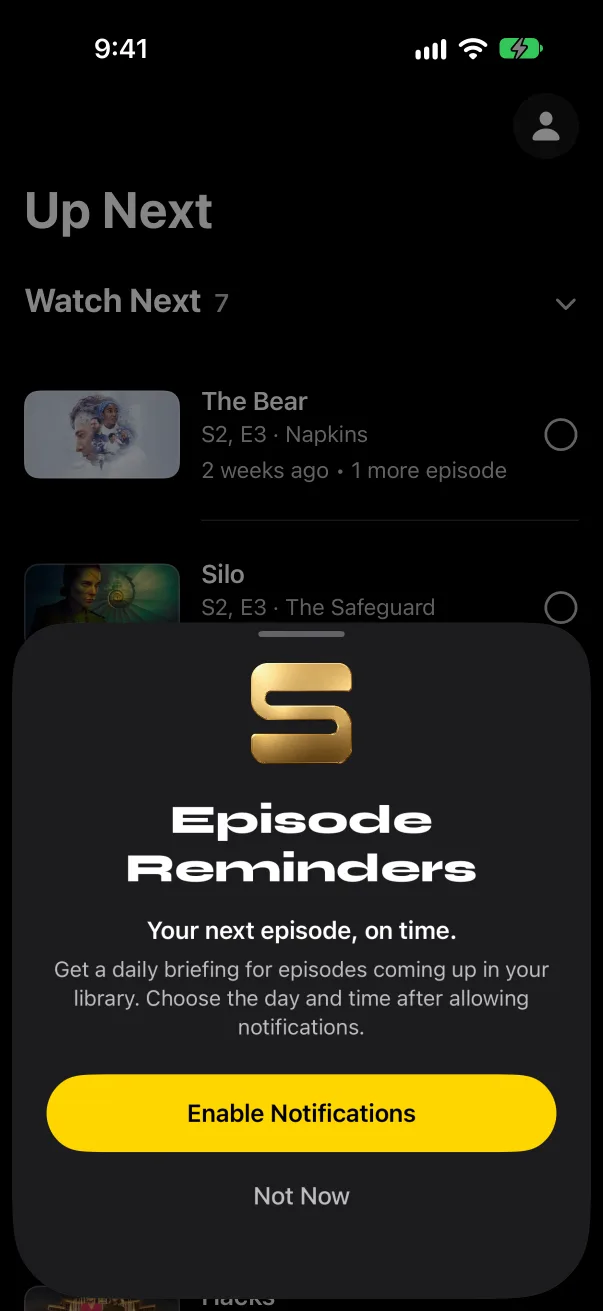
iOS only asks for permission after you tap Enable Notifications. Allow notifications to continue to Reminder Schedule, where you can pick Day before, Day of, or both, and the time you'd like the reminder. Tap Not Now to skip; you can turn reminders on later in Settings.