
Where to watch
See which streaming services carry a show in your region.
The Where to Watch section lists the services where you can stream, rent, or buy a show in your region. It appears above Episodes on the show page and at the bottom of each episode page.
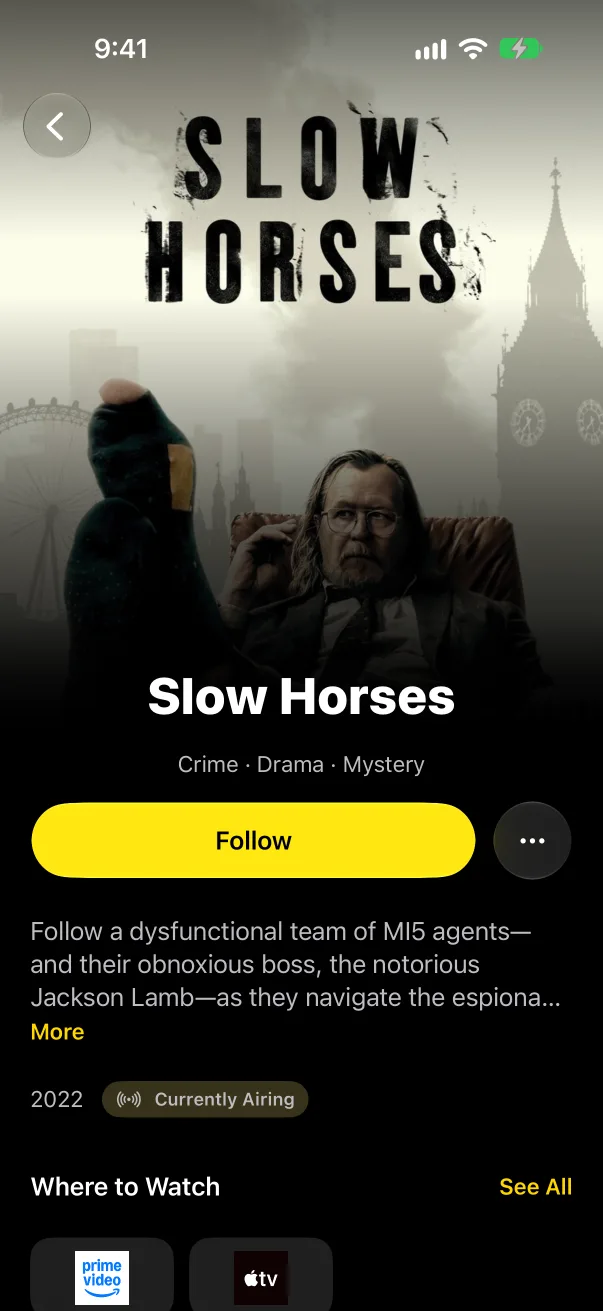
- Every service appears in a row you can scroll sideways.
- Rentals and purchases come after every way to stream.
- Tap See All for the full list, grouped into Subscription, Free, Free with Ads, Rent, and Buy. A service that streams the show and also rents or sells it appears in each of those groups. Once you choose your streaming services, the list groups them differently.
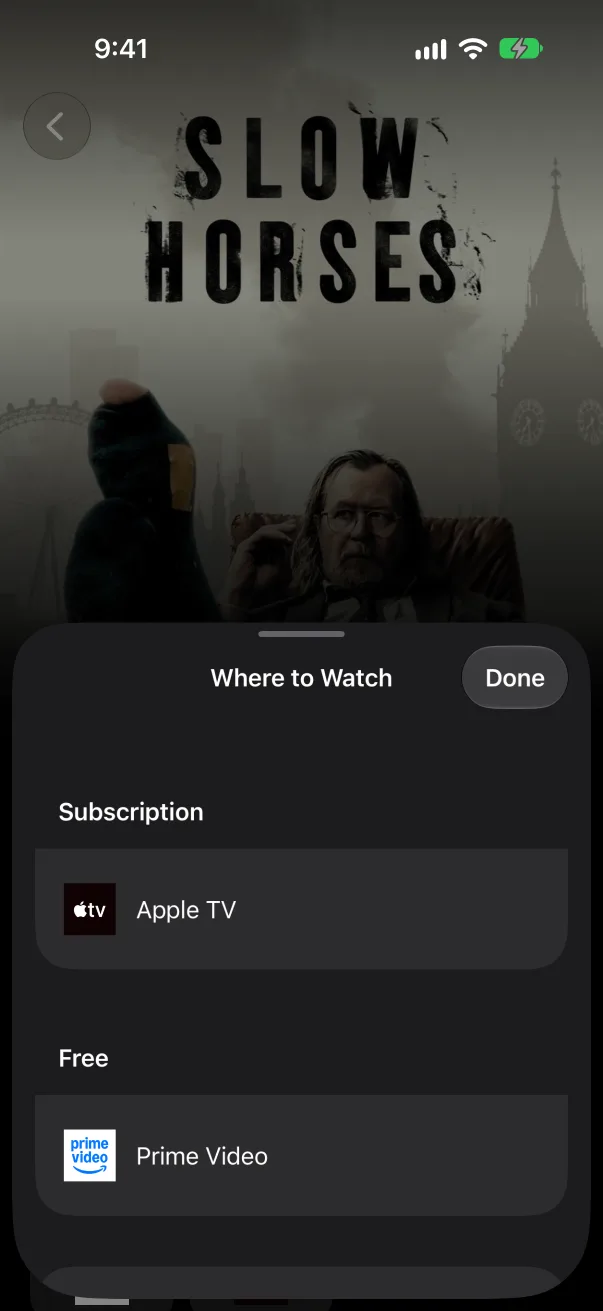
Open a service
Tap a service to open its app. If the app isn't installed, its website opens in your browser instead. Services that open this way show an arrow in the full list.
- Apple TV searches for the show.
- Netflix, Prime Video, Hulu, Disney+, HBO Max, and Paramount+ open to their home screen. Find the show there; Shows can't open a specific show or episode in another app.
- Other services, including channels bought through another app such as an Amazon or Apple TV channel, don't have a link in this list. Open that app yourself.
Match your streaming services
Choose the services you pay for, and Where to Watch puts them first.
Choose from Popular services, or use Search all services to find more.
Plans and channel versions of the same service appear as one choice. Other services you select stay visible under Your other services after you clear search. Separate subscriptions, such as Disney+ and Hulu, stay separate.
The list shows the services JustWatch reports for TV in your Where to Watch region. If services you chose aren't offered there, such as after you change regions, tap Remove at the top of the list to clear them. After you sign in, Shows also asks you to choose United States or Canada, then select your services for that country.
With services chosen:
- A line under Where to Watch says Included with and the services that carry the show, or Not on your services.
- Your services appear first in the row of logos.
- The full list starts with On Your Services, including their free and ad-supported plans, then Free and Free with Ads, then Other Services: subscriptions you don't have, then Rent and Buy. Other services with a sign-up page show Subscribe instead of an arrow; tap it to sign up. Apple TV has no sign-up page, so it shows an arrow and searches for the show.
Your choices are saved on this device.
When the section is missing
If no service in your region streams, rents, or sells the show, the section is hidden. If Shows couldn't load the list, the show page says Streaming availability is unavailable. with a Retry button; the episode page keeps the last list it loaded, or hides the section if there is none.
Which region is used
Where to Watch uses one region:
- your device's region, if it's one of your selected regions; otherwise
- the first region you selected.
To change your regions, open Settings → Discovery → Available Regions. You can choose United States, Canada, or both. See Settings.
Where the data comes from
Streaming availability is provided by JustWatch through TMDB. Tap Streaming availability by JustWatch at the bottom of the section to see the show's full listing in your browser.