
Finding your way around
The three tabs, the account button, and how the screens fit together.
Shows has three places in its tab bar (at the bottom on iPhone, at the top on iPad): Up Next, Library, and the yellow + button for Add Show.
Up Next
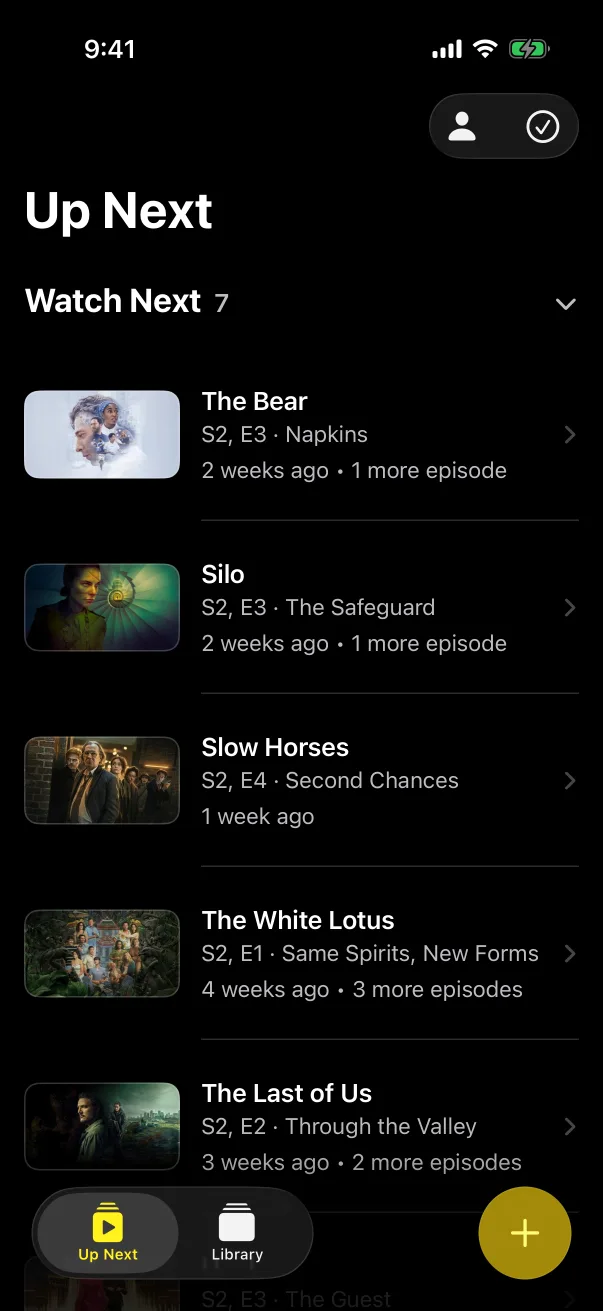
Up Next is where Shows opens. It lists one row per show: the next episode you haven't watched, grouped into Airing Today, Watch Next, Next Week, Next Month, and Later. Mark an episode watched and the row moves on to the following one.
While you’re on the Up Next list, tap Up Next again to scroll to the top. Switching between tabs keeps your place.
Library
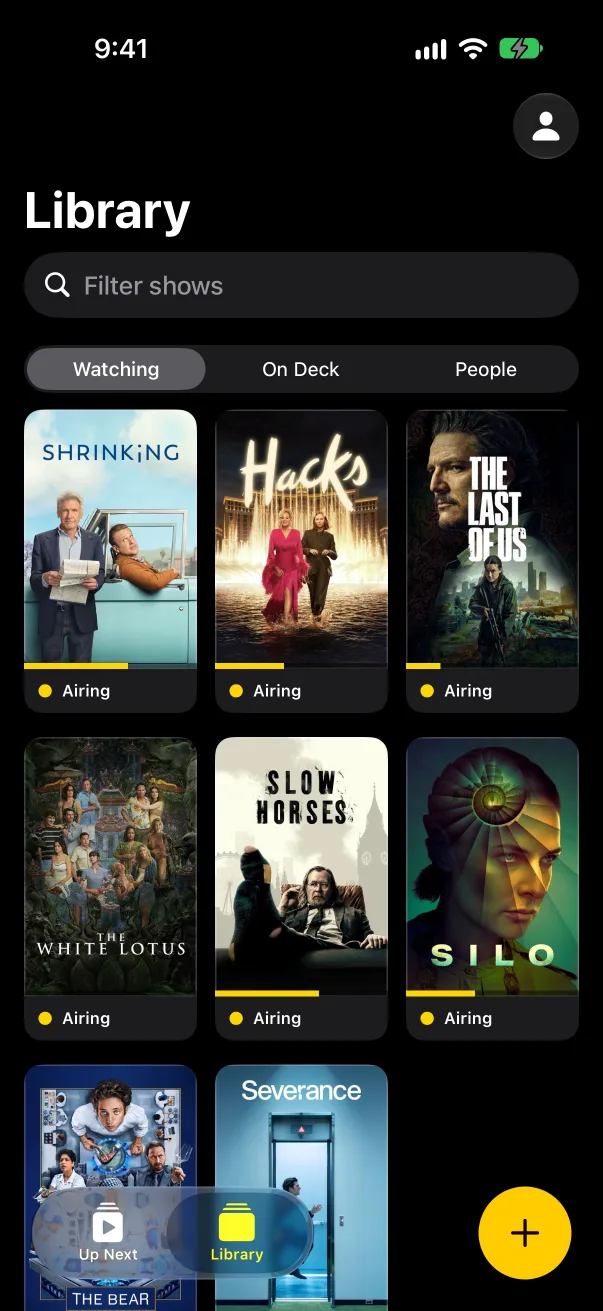
The Library is a poster grid of the shows you follow. Each poster carries the show's status underneath (for example Airing or Completed) and a yellow bar for your progress through the current season. Switch to People at the top to see the actors and creators you follow.
Add Show
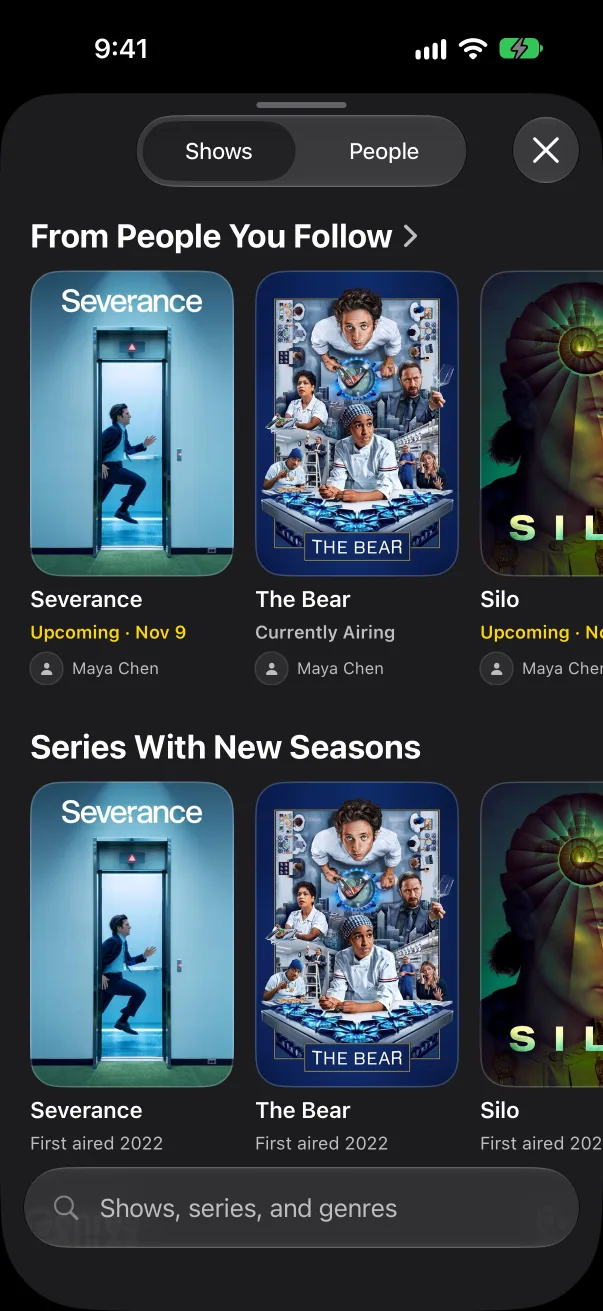
The yellow + opens Add Show as a sheet over whatever tab you were on. Type in the search field at the bottom to find a show, genre, or person, or scroll Discover for recommendations. Close it with the × in the corner or by dragging it down.
Show and episode pages
Tap any show, from Up Next, your Library, or a search result, to open its show page. From there you can follow the show, browse seasons, mark episodes watched, see where to stream it, and look through the cast and crew. Tap an episode for its episode page.
Show and episode pages, and pages you open from them, hide the tab bar so they have the whole screen. To switch tabs or open Add Show, go back to Up Next or your Library.
Settings
The round button in the top-right corner of Up Next and Library shows your initials (or a person icon). It opens Settings, where you manage your account, reminders, appearance, and more.
Keyboard shortcuts on iPad
With a keyboard attached, press ⌘W on an episode page to mark that episode watched.