
Settings
A tour of every setting in Shows and what it changes.
Open Settings by tapping the round account button (your initials or a person icon) in the top-right corner of Up Next or Library. Tap Done to close it.
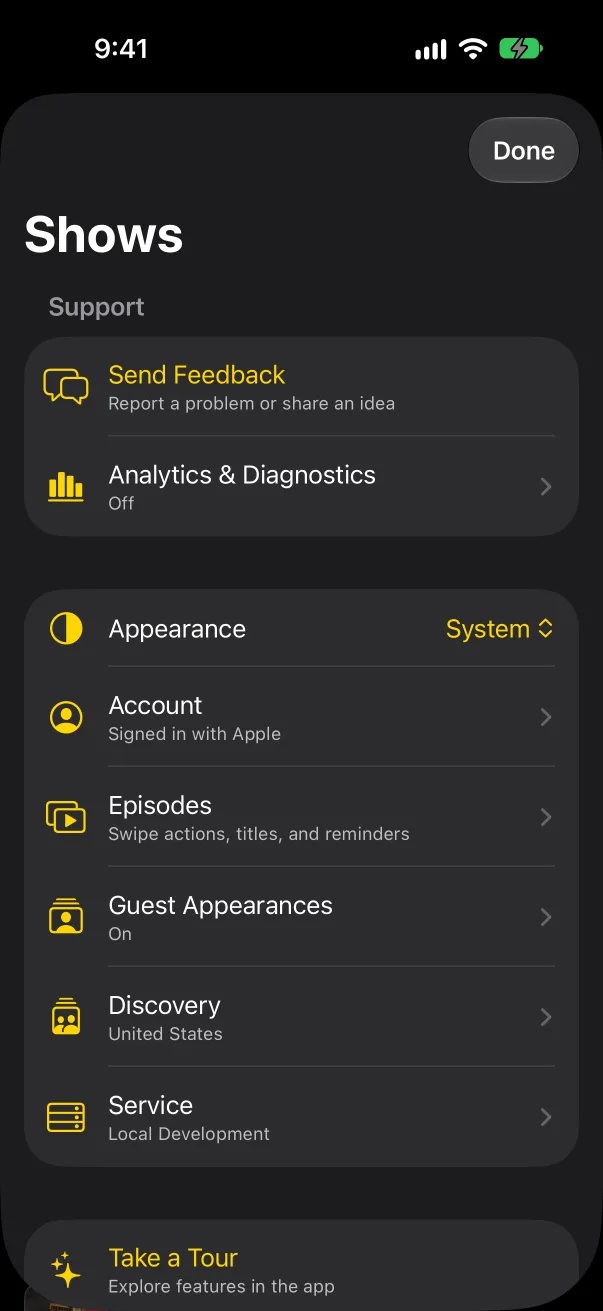
Support
- Send Feedback: report a problem or share an idea. See Send feedback.
- Analytics & Diagnostics: see below.
Appearance
Choose System, Light, or Dark. System follows your device's light or dark setting. The change applies immediately and only on this device.
Account
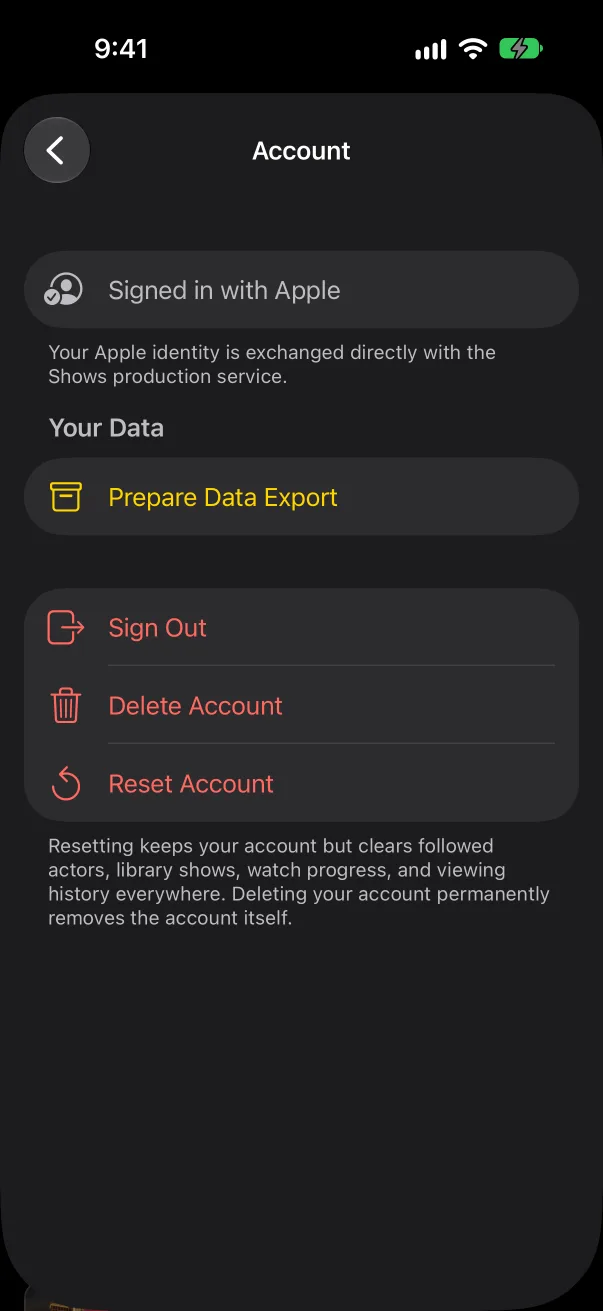
Shows how you're signed in, and lets you export your data, sign out, reset, or delete your account. See Account and your data.
Episodes
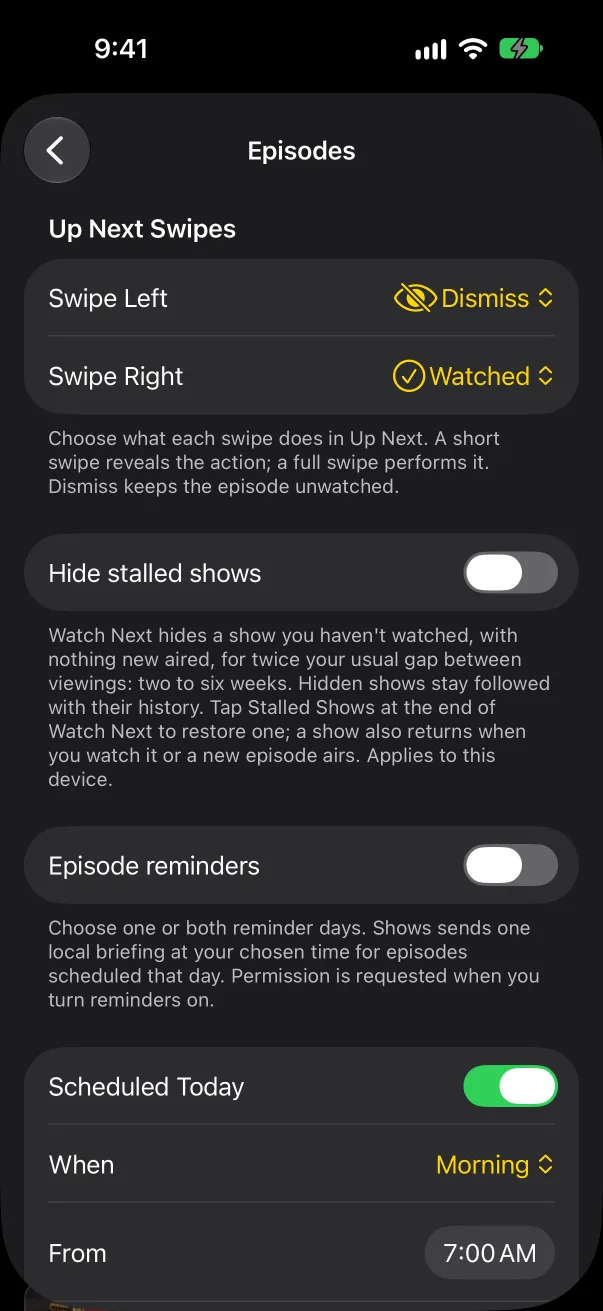
| Setting | What it does |
|---|---|
| Swipe Left / Right | What each swipe does in Up Next: Dismiss or Watched. See Marking watched. |
| Hide stalled shows | Hides shows you haven't watched in a while from Watch Next; restore one from Stalled Shows. Off by default. See Hide stalled shows. |
| Episode reminders | A daily briefing of scheduled episodes. See Episode reminders. |
| Scheduled Today | A Live Activity for today's episodes. On by default. See Scheduled Today. |
| Apple TV links | Adds an Open in tv button to episode pages when the show is on Apple TV. Off by default. |
Guest Appearances
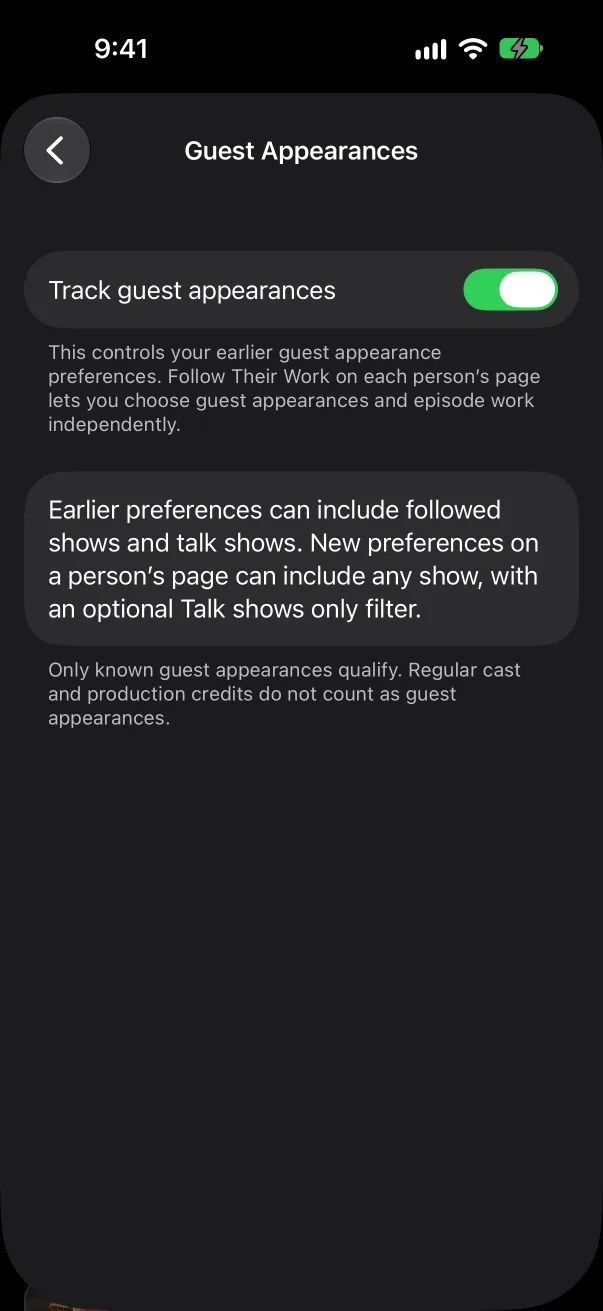
Track guest appearances is the earlier, account-wide way to follow guest appearances. It also adds Guests to your Library. For new choices, use Follow Their Work on each person's profile; see Follow their work.
Discovery
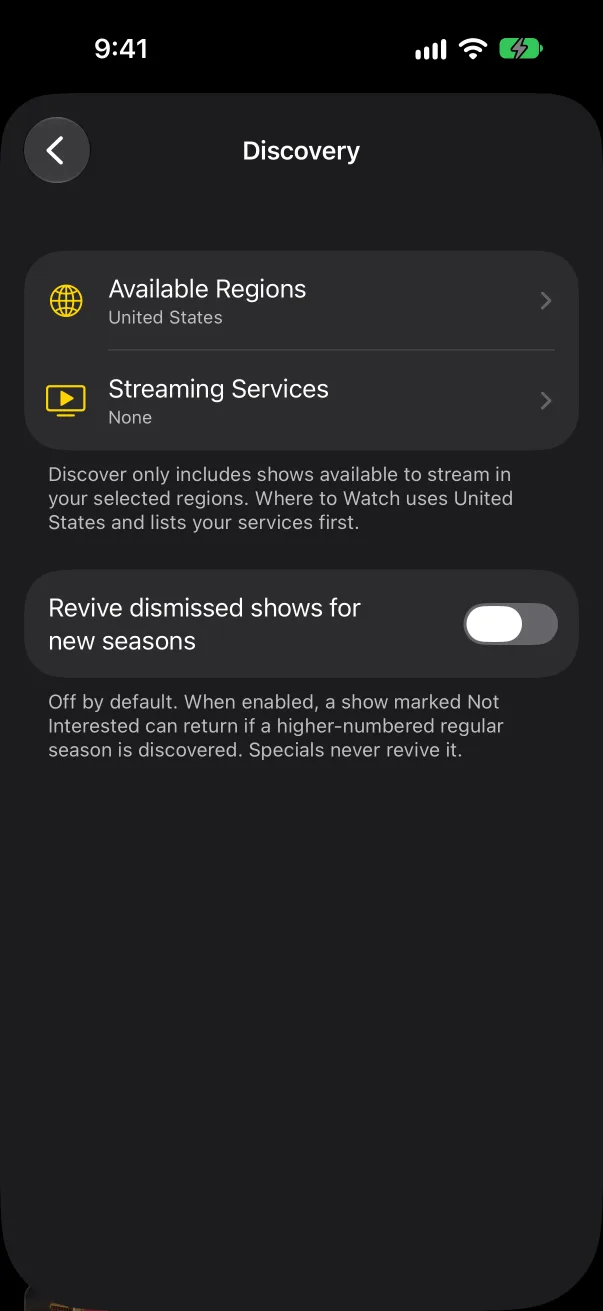
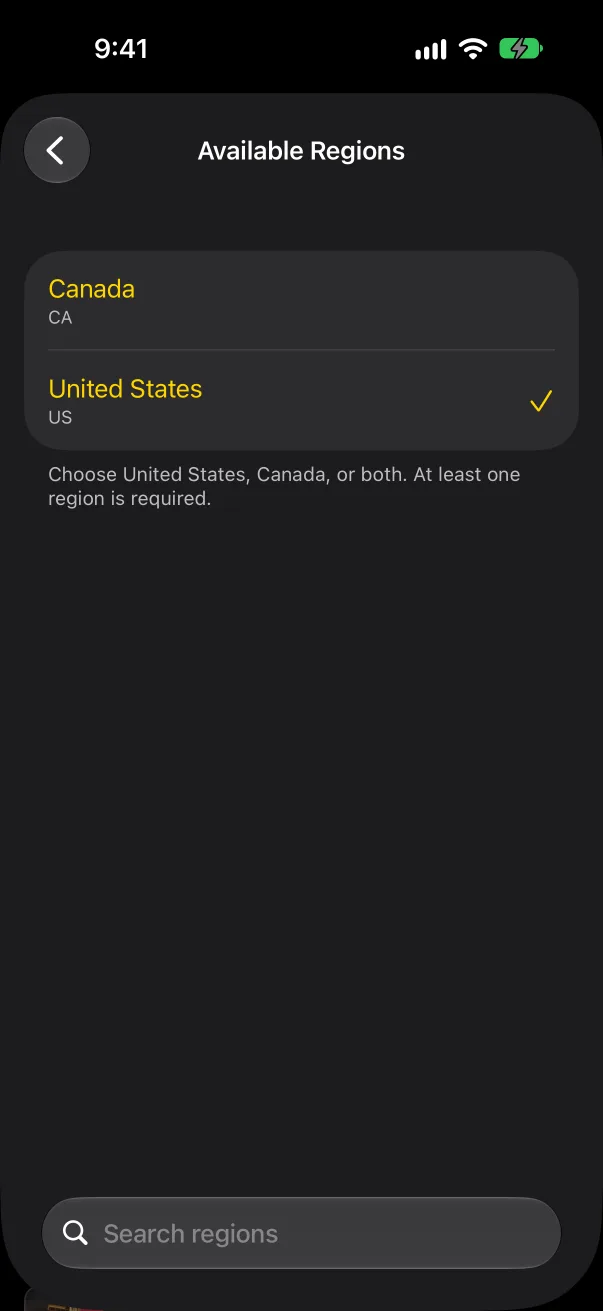
- Available Regions: the countries whose streaming services Shows checks. Choose United States, Canada, or both; at least one region is required. Discover only suggests shows available in these regions, and Where to Watch uses your device's region if selected, otherwise the first one you picked. Regions are saved on this device. Choosing a supported region replaces any previously saved countries outside the US and Canada.
- Streaming Services: choose the services you subscribe to from Popular services, or search the full JustWatch list for your Where to Watch region. Where to Watch lists them first and shows whether a show is included. Saved on this device.
- Revive dismissed shows for new seasons: off by default. When on, a show you marked Not Interested can return to recommendations when a new season is found.
Service
Shows which Shows service you're connected to. App Store and TestFlight builds always use the production service.
Analytics & Diagnostics
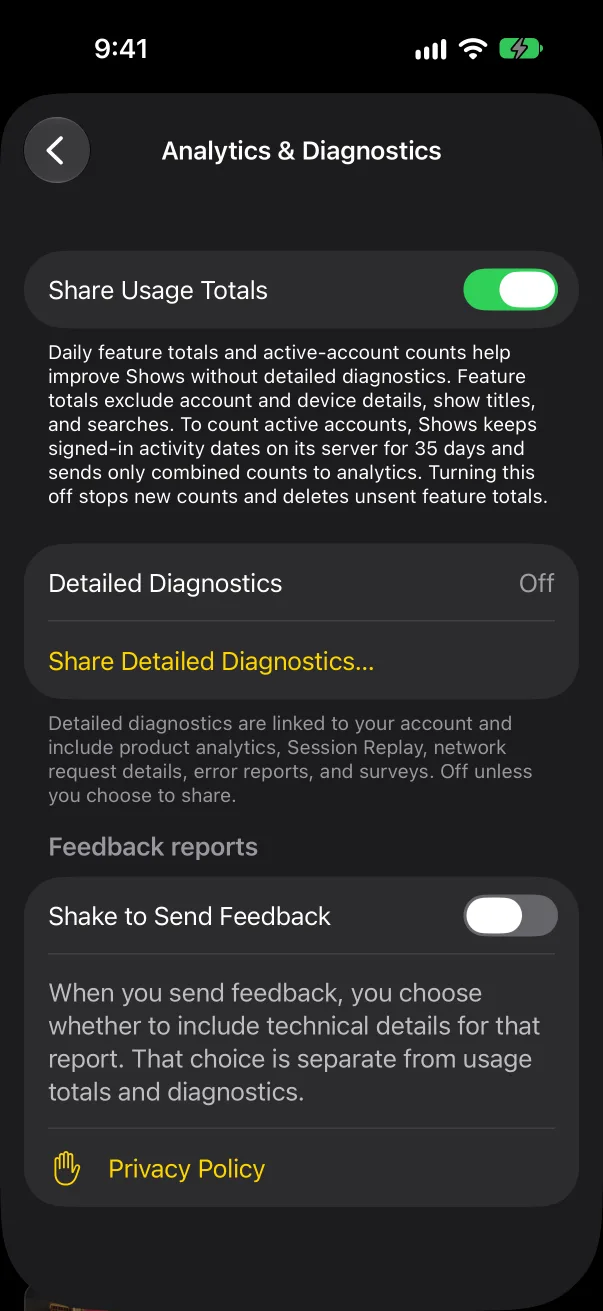
- Share Usage Totals is on unless you turned analytics off in an earlier version. Shows counts a fixed set of actions, such as app opens, screens visited, shows added, and sync results, and sends the totals about once a day. Totals include the app version but not your account, device, shows, or searches. Turning it off deletes totals not yet sent. While it is on, Shows also counts signed-in accounts used in the foreground across devices. Activity dates stay on the Shows server for 35 days; only combined daily, weekly, and monthly counts go to analytics. Turning it off stops new activity measurement on that device. Earlier combined reports remain. Detailed Diagnostics can stay off.
- Detailed Diagnostics is off unless you choose to share. Tap Share Detailed Diagnostics… to see what it includes: product analytics linked to your account, Session Replay with network request details, error reports, and surveys. Session Replay masks text fields and images. Tap Share Diagnostics to turn it on, or Not Now to leave it off. Tap Stop Sharing Diagnostics at any time to stop collection and reset your analytics identity. The two choices are independent.
- Shake to Send Feedback: shake your device anywhere in the app to open Send Feedback. Off by default.
- Privacy Policy opens shows.gg/privacy.
Shows also uses PostHog to manage feature availability. When you use your signed-in account, the server registers your random Shows account ID and service environment with PostHog. This happens independently of these two analytics choices and does not include your email, name, viewing library, or Plex credentials.
Choosing to include diagnostics in a feedback report is a separate, one-time choice you make on each report.
Take a Tour
Take a Tour starts the guided tour. It leaves your dismissed and finished tips hidden.
Reset Tips
Reset Tips makes all tips available again on this device after you confirm. They appear as you use their controls. Tap Cancel to keep them hidden.
What's New and About Shows
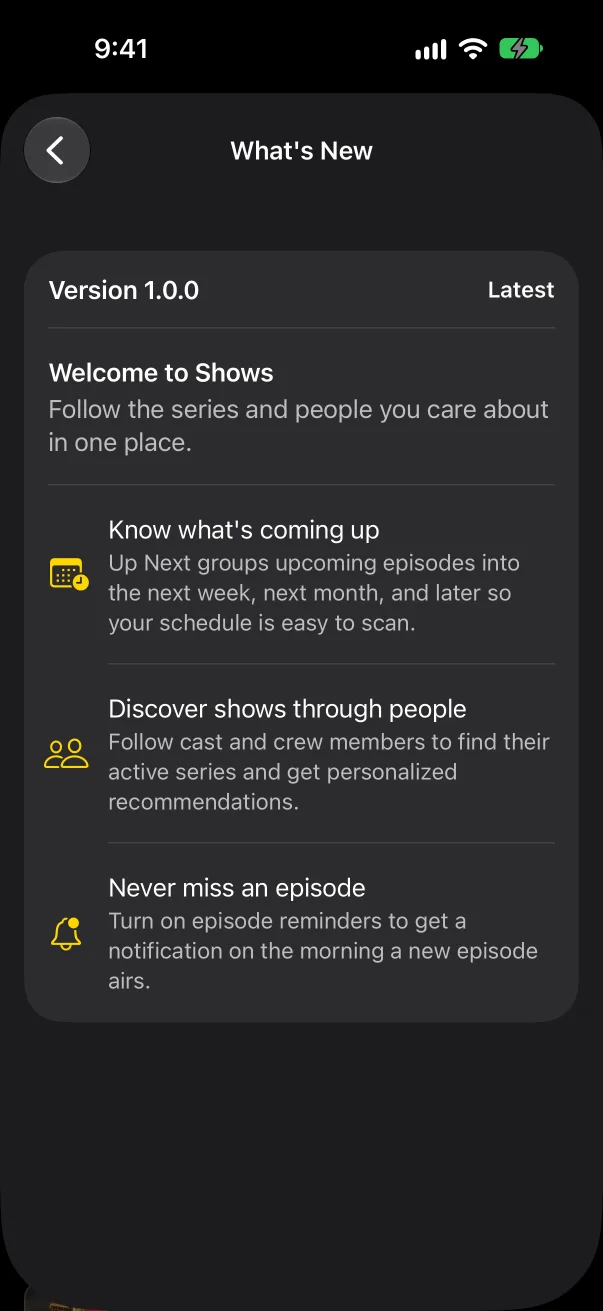
- What's New lists the highlights of the current version.
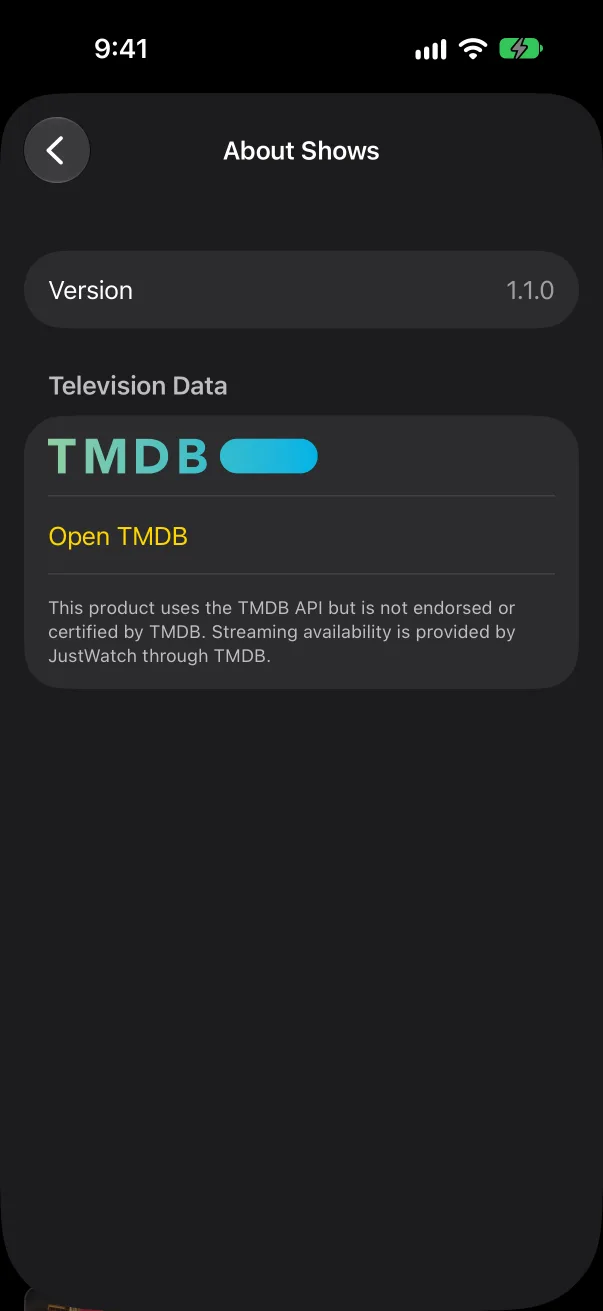
- About Shows shows your version, the TMDB logo, and credits TMDB, which provides Shows' TV information and artwork, and JustWatch, which provides streaming availability.
Which settings sync
| Synced across your devices | This device only |
|---|---|
| Revive dismissed shows, guest appearances, snoozes, dismissed episodes | Appearance, available regions, streaming services, Discover genres, episode view, swipe actions, Watch Next collapsed or expanded, hide stalled shows, reminders, alarms, Scheduled Today, Apple TV links, People Updates alerts, shake to send feedback, tips |