
Account and your data
Export your data, sign out, reset your tracking, or delete your account.
Your Shows account is tied to your Apple ID through Sign in with Apple. Manage it in Settings → Account.
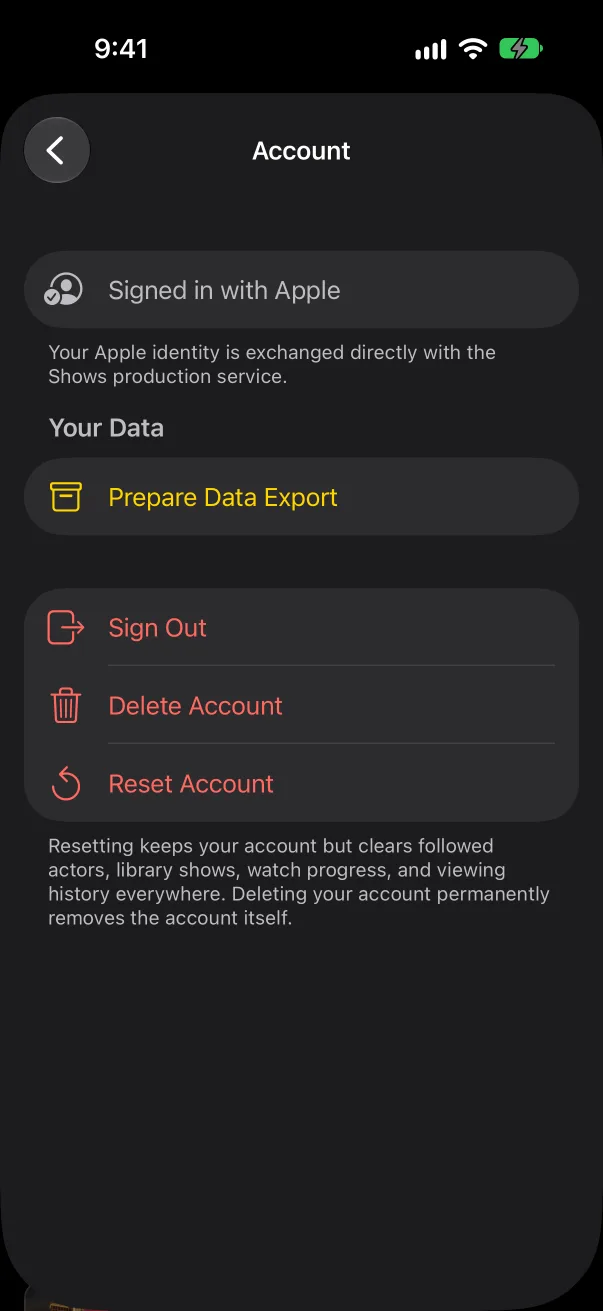
Export your data
Tap Prepare Data Export. Shows downloads a copy of your account.
Tap Share Data Export to save or send the file, Shows Export.json.
You need a connection to prepare an export.
Your export includes any activity dates still retained for usage totals. Shows records these dates while Share Usage Totals is on and keeps them for up to 35 days. Turning sharing off stops new collection on that device; dates already recorded expire on their normal schedule.
Sign out
Tap Sign Out, then confirm.
Signing out removes your Shows data from this device: your Library, watch history, recent searches, and scheduled alerts. Everything is still in your account; sign back in to download it again. Changes that haven't synced yet are lost when you sign out, so sign out while you're online.
Reset your account
Reset Account keeps your account but clears your tracking on every device: it unfollows everyone, removes every show from your Library, and clears all watch progress and history.
Because this can't be undone, Shows asks twice. The second time, type reset my account to enable the Reset Account button.
Delete your account
Confirm your identity with the Sign in with Apple button that appears.
Shows removes your account and history from the active service and erases the data on this device. The deleted account can't be reopened. Any backup created for a support request is retained separately.
Shows also asks Apple to disconnect Sign in with Apple. If Apple can't do that automatically, the sign-in screen shows One last Apple ID step: open your Apple ID settings, choose Sign in with Apple, and remove Shows. Tap I Understand to dismiss the message.
Reset vs. delete vs. sign out
| You want to… | Use | Affects |
|---|---|---|
| Use Shows on this device as someone else | Sign Out | This device |
| Start your tracking over but keep your account | Reset Account | Every device |
| Delete your account and clear its history | Delete Account | Every device |
If your session ends
If your Apple ID connection is revoked or your session expires, Shows returns to the sign-in screen but keeps your data on this device, including changes that haven't synced yet. Sign in with the same Apple ID to pick up where you left off. Signing in with a different Apple ID replaces the data on this device with that account's.